Forum Replies Created
-
AuthorPosts
-
Sakin
KeymasterFor Author
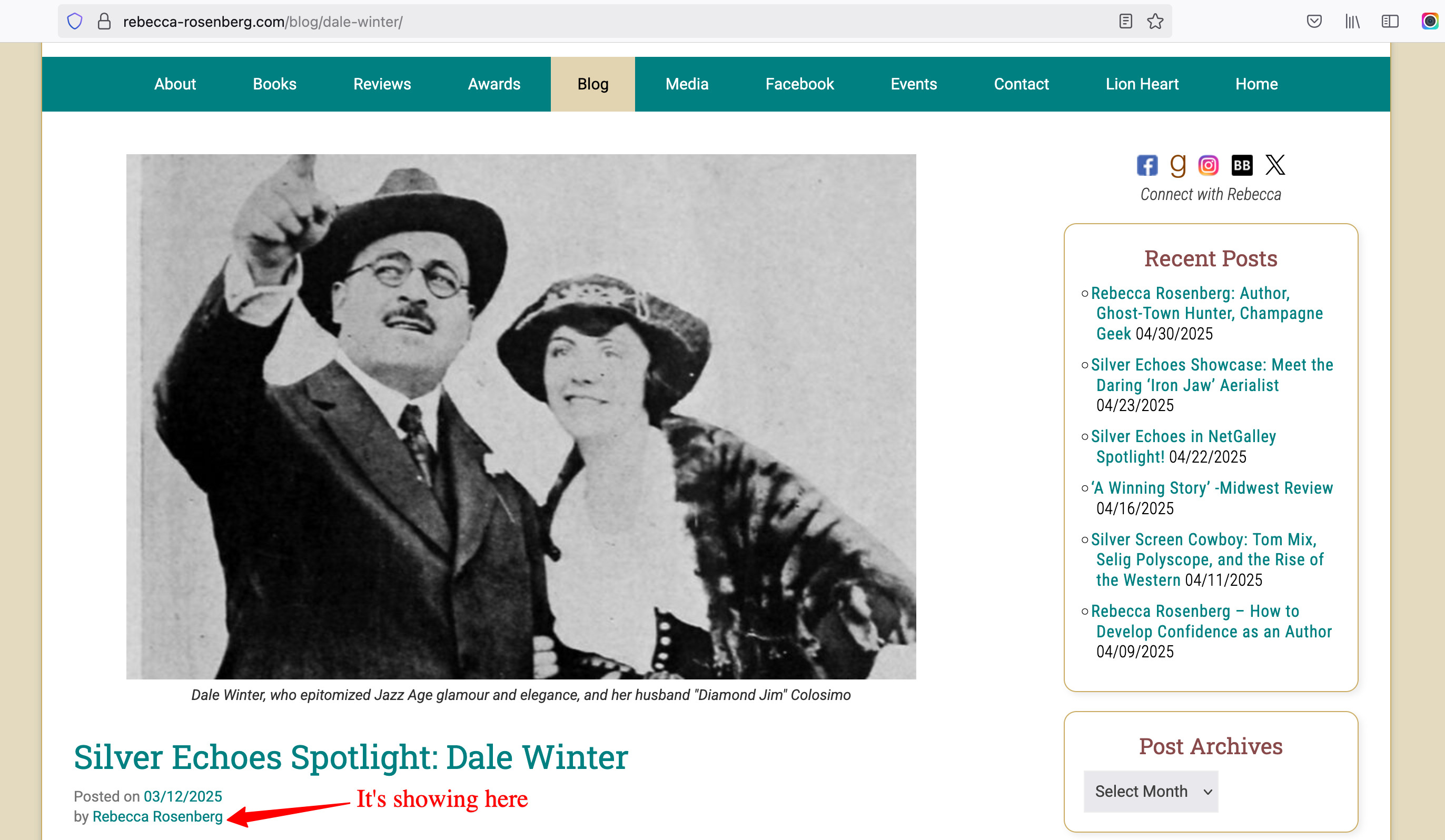
1. I checked your website and found that you have the following CSS in your child theme style.css. Please look for the following CSS code in your child theme’s style.css file and remove it.#main .entry-meta .by-author, #main .entry-meta .author, .category-blog .by-author { display:none; }Also, remove the following CSS code:
#main .entry-meta .on-date { display:none; }
.category-blog .on-date { display:block !important; }  /*Post date only shows on Blog posts*/
2. After that, you need to remove the following CSS code from Custom CSS, “Appearance => Customize => Additional CSS”
span.by-author, span.author.vcard { display:none!important; }If you do this, then your date and author will both show in the same line. It’s all your extra CSS that is causing the issue.
For Author Link
1. If you are editing your URL, then go to “Users => Profile” and then change the “Website” URL where you want it to redirect.
2. But if you are editing another user’s URL, then go to “Users => All Users”, then click on the user and then change the “Website” URLKeymaster@pilart: Maybe you are using the old Full Frame Pro theme version. Please check the changelog https://catchthemes.com/themes/full-frame-pro/#changelog
If your server is on PHP 8.0 or above, then you will have an issue with Full Frame Pro version below 4.3.2. We fixed the PHP issue on version 4.3.2 and above.
Yes, you need to purchase the latest version and then upload it using the FTP https://catchthemes.com/frequently-asked-questions/#question-installation-how-do-i-upgrade-to-a-new-theme-version-if-i-have-modified-my-theme
Keymaster@pilart: Please reinstall the Full Frame Pro theme and check it. Can you share your site URL?
Keymaster@effess: The author is showing fine in your blog post. You don’t need that CSS. Check this screenshot https://cldup.com/xX22Zqg8yH.jpg
KeymasterHello @scorpionbowl,
Yes, please check with your website hosting server support. The might be some redirect script. We don’t have that on our theme.
Also, your website might be hacked. So, check this https://www.malcare.com/blog/wordpress-hacked-redirect/
Regards,
SakinKeymaster@landerson: Thanks for using the FSE Pro plugin. The license section is there for the FSE Pro plugin, which is under “Plugins => FSE Pro Plugin License”.
Please check this https://catchthemes.com/fse-faq/#question-installation-and-update-how-to-activate-license-key
KeymasterHi Jon,
Thanks for purchasing the FSE Pro theme. Which theme are you using it?
To install the FSE Pro plugin, you can check this FAQ at https://catchthemes.com/fse-faq/#question-installation-and-update-installation- After purchasing FSE Pro Plugin, go to My Account page
- Then on the Download Section, click on File name to download your plugin fse-pro.zip file
- Note: Some modern browsers like Safari has an auto zip extractor and will extract the zip file as soon as you download the zip file. In this case, open Safari and go to “Safari => Preferences” and in the “General” tab, uncheck Open “safe” files after downloading. This will stop Safari from automatically unzipping the files and then you can download zip file
- Log in to the WordPress Administration Panel
- Go to “Plugins => Add New Plugin”
- Click on “Uploads” and Browse the downloaded file fse-pro.zip from the desktop where you have it downloaded
- Click on “Install Now” to install the plugin
- After it’s installed, click on the “Activate Plugin” button to Active the Plugin
If you still have issues then let me know and I will contact you via email.
Regards,
SakinKeymasterHello @swiftyrox,
I have just created a plugin to disable that notice. Just download this plugin zip file https://catchthemes.com/wp-content/uploads/2025/04/disable-doing-it-wrong-notice.zip
After you download this zip file, upload to your website from “Plugins => Add Plugin => Upload Plugin” and click on “Browse” and select the downloaded zip file. Click on “Install Now” and then activate the plugin “Disable Doing It Wrong Notice”.
Regards,
SakinKeymasterHello @swiftyrox,
It’s already fixed in the Rock Star Pro theme. But for those plugins, you need to either deactivate the plugin or contact the plugin author to update it.
Regards,
SakinKeymasterHello Sandra,
Elementor is using an old version of Font Awesome. So for Font Awesome 4, you can add the following CSS:
.widget_catchresponsive_social_icons a.font-awesome {
  font-family: "FontAwesome";
  font-weight: 400;
  font-size: 20px;
  line-height: 1;
}
Regards,
SakinKeymasterHello Sandra,
I think you are looking for more icons. So, it’s better to use Font Awesome 6 in the above CSS as well.
Can you add the following CSS for Social icons in “Appearance => Customize => Additional CSS” box
.widget_catchresponsive_social_icons a.font-awesome {
  font-family: "Font Awesome 6 Brands";
  font-weight: 400;
  font-size: 20px;
  line-height: 1;
}
Regards,
SakinKeymasterHello Sandra,
If you want to use the Font Awesome 4 which is there in Elementor then you can add following CSS in “Appearance => Customize => Additional CSS” box
.mobile-menu-anchor .fa-menu:before {
  font-family: "FontAwesome";
}
But if you want to use the Font Awesome 6 which is there in the theme then you can add following CSS in “Appearance => Customize => Additional CSS” box
.mobile-menu-anchor .fa-menu::before {
  font-family: "Font Awesome 6 Free";
}
Regards,
SakinKeymasterHello @lolahentertainment,
It looks like plugin issue. Can you check your WP Rocket and other cache plugin settings?
Try this, go to “Settings => WP Rocket => File Optimization”
* In CSS File settings, try unchecking “Optimize CSS delivery”
* Same with JavaScript Files, check the settingsMarch 24, 2025 at 1:21 pm in reply to: Catch Theme “Mustang”, Version 4.0.1: Customizer & THEME OPTIONS failure #339289KeymasterHello Andreas,
Sorry for the issue. We have fixed it in version 4.0.2. Please update and it should work fine.
Regards,
SakinMarch 23, 2025 at 11:15 pm in reply to: My domain got a new name. Now I can’t activate my theme at the new domain. #339276KeymasterHello Juergen,
I have deactivated the license key from your old site. Now, you can log in to your new site and activate the license key.
In the future, you can deactivate the license from your account by yourself:
- First, log in to My Account page: Once you are on the My Account page, click on “View Licenses” and you will see your license details.
- Click on “Manage Sites” and you will see the site URL, then click on “Deactivate Site”.
- Then you can Install the license key on your Live Site.
Regards,
SakinKeymasterHi Laura,
You can increase the font-size in the following CSS and add it in “Appearance => Customize => Additional CSS” box:
@media screen and (max-width: 1024px) {
  body, button, input, select, textarea {
    font-size: 15px;
  }
}
Regards,
SakinKeymasterHello Hans,
I’m glad to hear that you found the solution. Closing this topic.
Regards,
SakinKeymasterHi Antonio,
It’s a little technical to check the ID. Please refer to https://support.google.com/campaignmanager/answer/2828688?hl=en
Regards,
SakinKeymasterHi Antonio,
You need to link the form using # ID. Please this as link
https://weddingphotographymiami.com/contact-me/#QFBsDxT7HsQbjuv9M9kXRegards,
Sakin -
AuthorPosts