
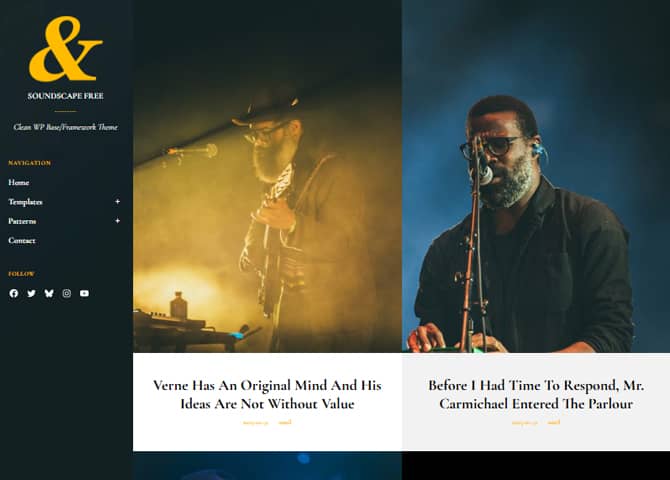
Soundscape is a modern and versatile block-based WordPress theme crafted for corporate websites, music artists, bloggers, photographers, and creative professionals. Designed with simplicity and flexibility in mind, Soundscape lets you build visually appealing pages easily using WordPress’s Full Site Editing capabilities. The theme includes a collection of ready-to-use templates, beautifully designed block patterns, and customizable template parts, giving you everything you need to create a clean, stylish, and functional website without touching a single line of code. Whether you are showcasing your portfolio, sharing your stories through a blog, promoting your music, or creating a polished business site, Soundscape provides a smooth and intuitive design foundation that adapts to your needs. With its lightweight structure, user friendly layout, and modern aesthetics, Soundscape helps you launch a beautiful website effortlessly, perfect for anyone looking to build a strong online presence.
Features
Responsive Design
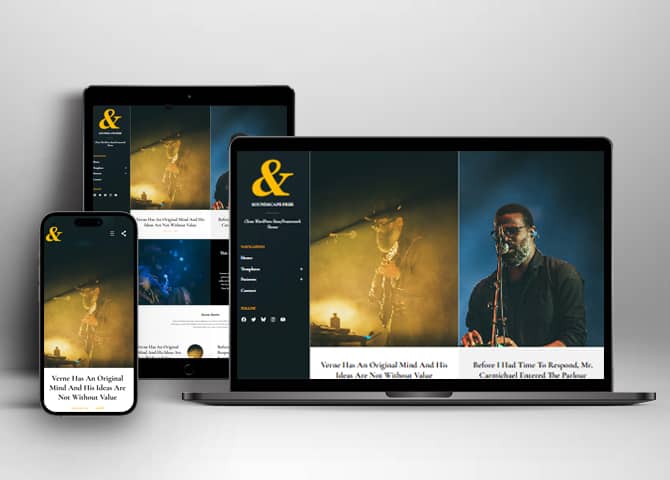
One of the key features of our themes is that your website will magically respond and adapt to different screen sizes delivering an optimized design for iPhones, iPads, and other mobile devices. No longer will you need to zoom and scroll around when browsing on your mobile phone.
Incredible Support
We have a great line of support team and support documentation. You do not need to worry about how to use the themes we provide, just refer to our Tech Support segment. Further, if you need to do advanced customization to your website, you can always hire our theme customizer!
Featured Content
Featured Content allows you to highlight your recent & popular posts on your website. It can either be displayed on Homepage or the entire site. You can add your title and sub-title for featured content, select the number of featured content, display Meta, select multiple categories, and enjoy displaying your featured & recent posts.
Services
Every website owner wants the world to know about the services they provide. It allows you to place the services you provide for your customers on the spotlight. Choose to display the services in 2 to 4 columns. Display your services on the homepage only or on the entire website.
Hero Content
You can now display the best assets of your website with the Hero Content feature. The feature allows you to highlight the most important content in a fashion that is easily attention-grabbing. You can enable the hero content either on Homepage or the entire site. Hero Content - the easiest way to display your strengths.
WordPress Standard Codes
Our code is secure and optimized. We do proper data validation and sanitization and follow core theme guidelines. Our developers are active contributors to WordPress theme review and WordPress core. Our themes will always be updated as things change in WordPress.
Portfolio
Portfolio empowers you to showcase your professional skills and accomplishments to the world at large. Display your Portfolio in an elegant manner on the Homepage/Frontpage, the entire site or you can also disable it completely if you don’t need it. An astounding way to easily display your experience, skills, talent, and expertise.
Sections Sorter
Sections Sorter allows you to organize various sections on your website by manually sorting them. Simply drag and drop the sections to your desired position and display them orderly.The cool feature in this option is that you can not only rearrange the order but also can quickly edit those sections from Sections Sorter option if you want any changes.
Footer Editor
Footer Editor Options enables you to edit the content of the footer easily. You can either add HTML, plain text, or custom shortcodes which will be inserted into your theme automatically. You can use shortcodes like [the-year], [site-link] and [privacy-policy-link] for the current year, site link and privacy policy link respectively.
Full Site Editing
Customize your whole website design directly from the Front-End and build something magical. Change your site layout and add blocks/patterns directly on the site whilst working on the page content. Super easy to create dynamic content!
Multiple Block Patterns
Comes with a collection of predefined block design layouts, available from the patterns tab of the block inserter. Create an elegant layout that combines different blocks. Build Gracefully!
More Features
- Responsive Design
- Page Templates
- Color Options
- Featured Thumbnail
- Threaded Comments
- Dropdown Menu
- Gravatar Ready
- Localized for translations
- Custom Header / Logo
- Custom Menu
- Custom Footer
- Custom Background
- Custom Layout
- Custom CSS
- Support
- Hero Content
- Portfolio
- Services
- Featured Content
- WordPress Standard Codes
- Sections Sorter
- Full Site Editing
- Block Based Theme
- Site Editor
- Patterns
- Template Editing
Free Vs Pro (Premium)
| Free | Features | Pro (Premium) |
|---|---|---|
| Responsive Design | ||
| Super Easy Setup | ||
| Blog Section (Block) | ||
| Contact Form With Info (Block) | ||
| Contact Form (Block) | ||
| Contact Info 3 Col (Block) | ||
| FAQ (Block) | ||
| Featured Category Slider (Block) | ||
| Featured Category (Block) | ||
| Featured Content (Block) | ||
| Featured Content Three Col (Block) | ||
| Featured Products (Block) | ||
| Google Map (Block) | ||
| Header Media (Block) | ||
| Hero Content (Block) | ||
| Hero Content Full Width (Block) | ||
| On Sale Products (Block) | ||
| Our Identity (Block) | ||
| Our Story | ||
| Portfolio (Block) | ||
| Products Carousel (Block) | ||
| Promotional Headline (Block) | ||
| Promotional Message (Block) | ||
| Service (Block) | ||
| Services With Thumbnail (Block) | ||
| Slider (Block) | ||
| Stats (Block) | ||
| Team Members (Block) | ||
| Testimonial (Block) | ||
| Testimonial Slider (Block) | ||
| Testimonial Slider With Background Image (Block) | ||
| Top Rated Products (Block) | ||
| Woo Features (Block) | ||
| Archive | ||
| Footer Widgets | ||
| Footer | ||
| Hidden 404 | ||
| Hidden Comments | ||
| Hidden No Results | ||
| Hidden Post Meta | ||
| Hidden Post Navigation | ||
| Hidden Search | ||
| Post Header | ||
| Sidebar | ||
| FrontPage Template: Template Home Blogging | ||
| FrontPage Template: Template Home | ||
| FrontPage Template: Template Ecommerce | ||
| Page Template: Page About Us | ||
| Page Template: Page Our Services | ||
| Page Template: Page Contact Us | ||
| Page Template: Page Home Blogging | ||
| Woo Sidebar | ||
| Template: Archive Product | ||
| Template: Archive | ||
| Template: Blog | ||
| Template: Single Page No Sidebar Full Width | ||
| Template: Single Page No Sidebar | ||
| Template: Single Post No Sidebar Full Width | ||
| Template: Single Post No Sidebar | ||
| Template: Home Blogging | ||
| Template: Home | ||
| Template: Home Ecommerce | ||
| Parts: All Products | ||
| Parts: Comments Post Page | ||
| Parts: Footer With Widgets | ||
| Parts: Footer | ||
| Parts: Header With Cart | ||
| Parts: Header | ||
| Parts: Product Collection | ||
| Parts: Page Content Full Width | ||
| Parts: Post Content Full Width | ||
| Parts: Sidebar | ||
| Parts: Woo Sidebar |
Theme Instructions
How to install theme?
You can download Soundscape free theme through Dashboard > Appearance > Themes > Add New > Soundscape. Simply click on the ‘Install’ button and wait for a few seconds to ‘Activate’ the theme.
Frequently Asked Question
Before starting please visit our Frequently Asked Question link, to know more about Full Site Editing Themes
How to Open Site Editor?
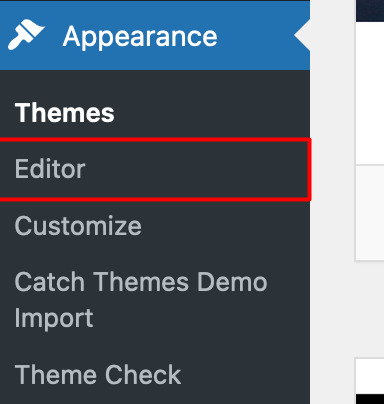
If you are on WordPress Dashboard then go to “Appearance -> Editor” to open the Site Editor.
If you are on Site Front-End then you will see WP Admin Bar on the top of the page, click on “Edit Site” to open the Site Editor.

Add and Edit Menu
You can Select predefined menu and create you own customized menu.
Go to this link for Navigation Block
1. This Video show how to create your own custom menu:
2. This video shows how to select predefined menu:
Site Navigation Menu
Please visit this link for Navigation Block. You can edit existing menu or create a new one.
How to work with Soundscape Blocks and Patterns
After opening site editor, there are 3 ways you can add Blocks and Pattern in you website:
There are three ways to add a block using the Block Inserter (+) icon.
- Click on the Block inserter (+) icon in the top toolbar and Click on Patterns. Browse the Patterns and select the one that you like to add.
- Click on the Block inserter (+) icon to the right of an empty block, after that Click on the Browse All button, and finally Click on Patterns. Browse the Patterns and select the one that you like to add.
- Click on the Block inserter (+) icon in between blocks, after that Click on the Browse All button, and finally Click on Patterns. Browse the Patterns and select the one that you like to add.

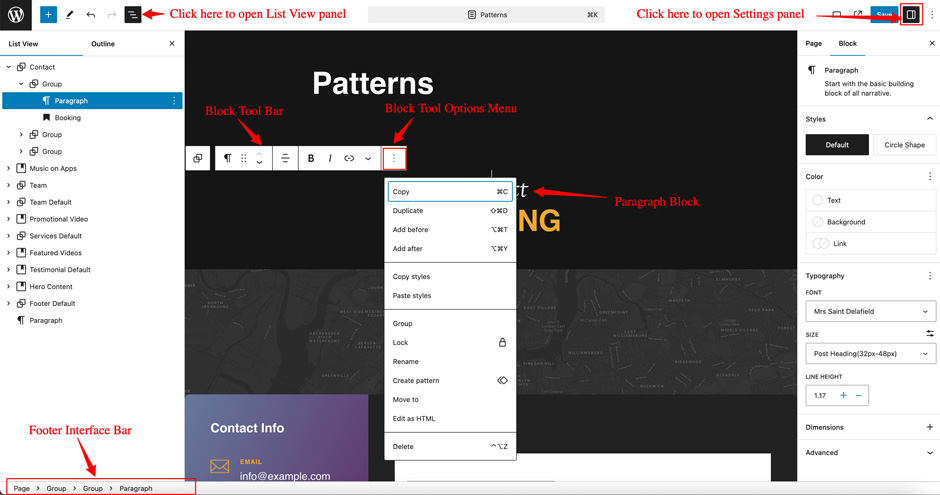
Once the section is selected you can edit its content or if you want to customize the section’ properties/options, click the three dots and select your desired action. Duplicate, Remove, Copy or Add desired section before or after the current section.
Go to this link to know more about adding blocks and patterns
How to Edit Pattern Content?
First, click on the pattern content you wish to edit/customize
You can select the section/content in three ways
- Clicking on the section itself
- List View
- Footer Interface Bar
Once the section is selected you can edit its content or if you want to customize the section’ properties/options, click the three dots and select your desired action. Duplicate, Remove, Copy or Add desired section before or after the current section.
Patterns in Soundscape
Patterns in Soundscape are predefined list of in built sections. Patterns are built with different type of blocks.
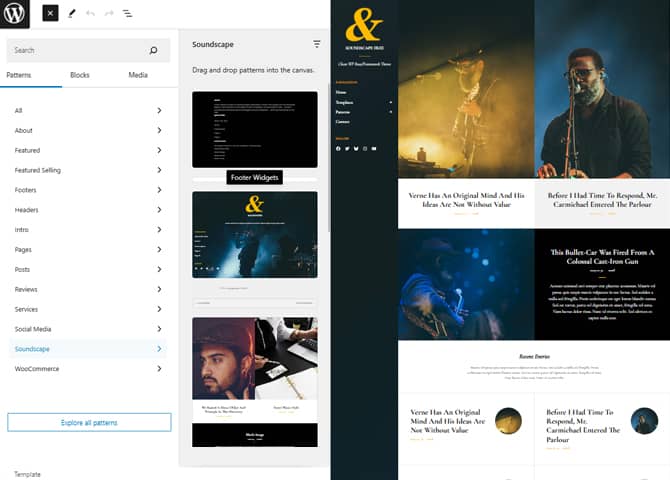
You can easily add patterns in any part of your website. You will just have to click on ‘+’ sign on top left of your page or post, then you will see tab for “Pattern” click on that to see list of patterns. Under Scroll Down you will find “Euphony Blocks” which will display list of our Euphony Blocks pattern
Pattern are group of blocks. Once a pattern is added in editor, they are now individual blocks that can be moved edited or replaced. The pattern stops being pattern as soon as it placed in the editor. The content of patterns are always saved even if the users switches theme. It might look different in different themes.
There are 13 Patterns in Soundscape.
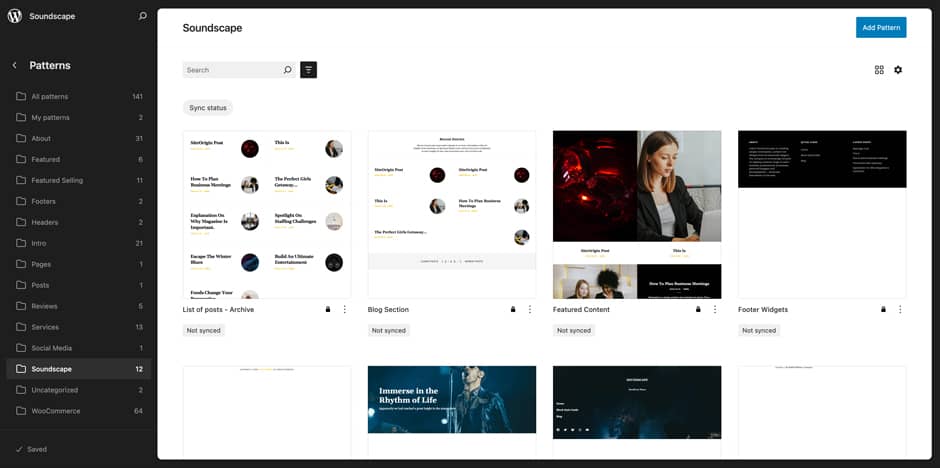
Here is the list of Patterns Euphony Blocks supports including patterns from FSE Pro Plugin.
- List of posts – Archive
- Blog Section
- Featured Content
- Footer Widgets
- Footer
- Header Media
- Header
- Hero Content
- Post meta
- Post navigation
- Page Home Blogging
- Sidebar
- Woo Sidebar
Header Patterns
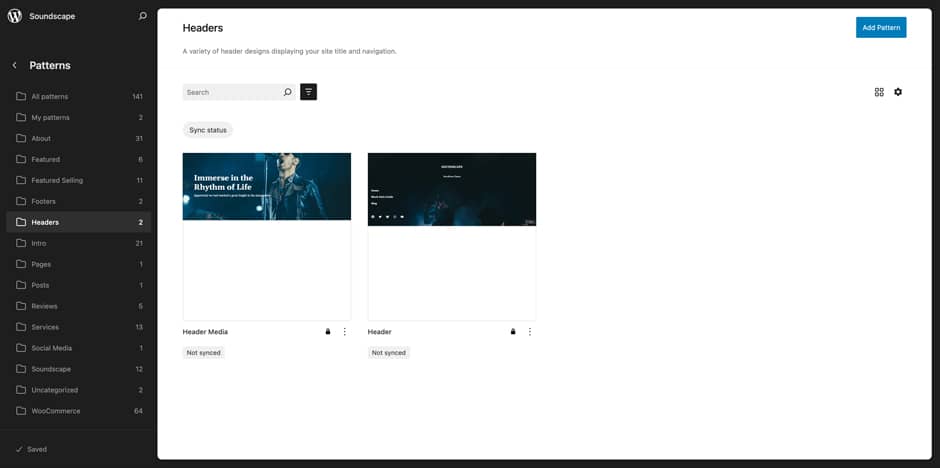
There are 2 different headers provided by Soundscape. Here are the list of headers. You can choose header according to your need.
- Header
- Header Media
Here is how you add header to website:
- Click on “+” sign on block pattern tab to display Blocks and Pattern, Click on Pattern
- Click select “Soundscape” to see list of pattern provided by Soundscape
- Scroll down to find 2 different type of header(mentioned above) or type “Header” in Search box, click to add desired header or drag and drop
- After adding header, Click on Top left setting icon there you can edit the sections
- Edit Header Accordingly you can add, images, text, cover and so on
- Finally, click “Save” to save changes
Header Media
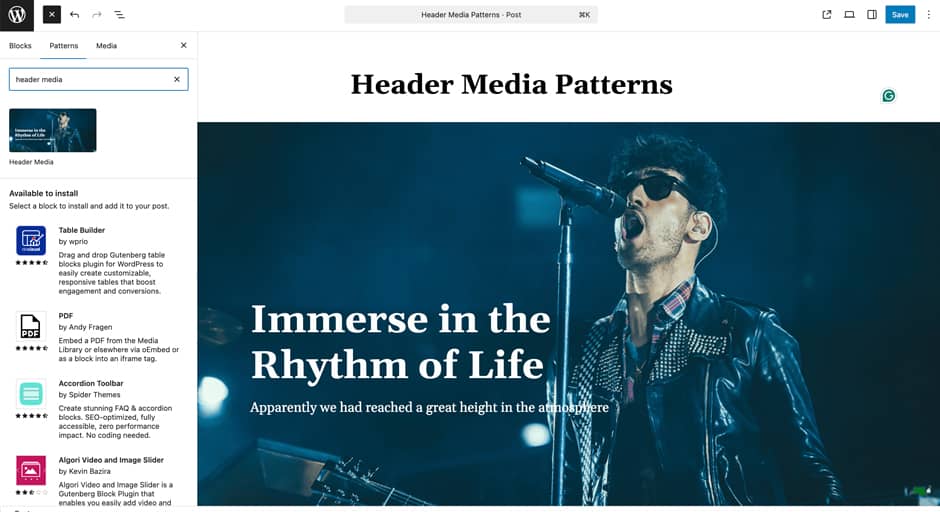
Soundscape supports Header Media pattern, using this pattern you can add image in your header area along with featured image, button, header media text.
Here is how you edit header media:
- Click on “+” sign on block pattern tab to display Blocks and Pattern, Click on Pattern
- Click on dropdown menu and select “Soundscape” to see list of pattern provided by Soundscape
- Scroll down to find “Header Media” or type “Header Media” in Search box
- Click to add or drag and drop in desired area
- Click on the content of header media itself to replace images, text and button. You can add and replace header media such as image, text, link as per your need
- Finally click on Save to save changes
Featured Content
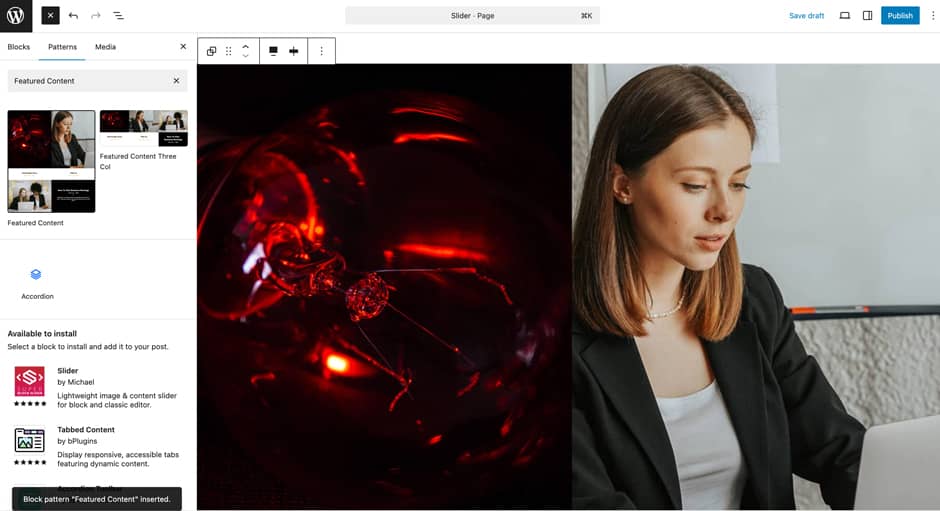
Soundscape supports Featured Content patterns, this pattern allows you to display your Post Type (posts/page/prducts) with the help of Query Loop. It’s just like a featured content on the classic theme. By default it display 3 latest posts with the help of Query Look (Post type as “Post” and Items per page as “3”).
Here is how you add Featured Content:
- Click on “+” sign on block pattern tab to display Blocks and Pattern, Click on Pattern
- Select “Soundscape” to see list of pattern provided by Soundscape
- Scroll down to find “Featured Content” or type “Featured Content” in Search box
- Click to add or drag and drop in desired area
- Edit Featured Content, you can change the Post Type, Order By, Items Per Page and so on using the Query Loop block settings.
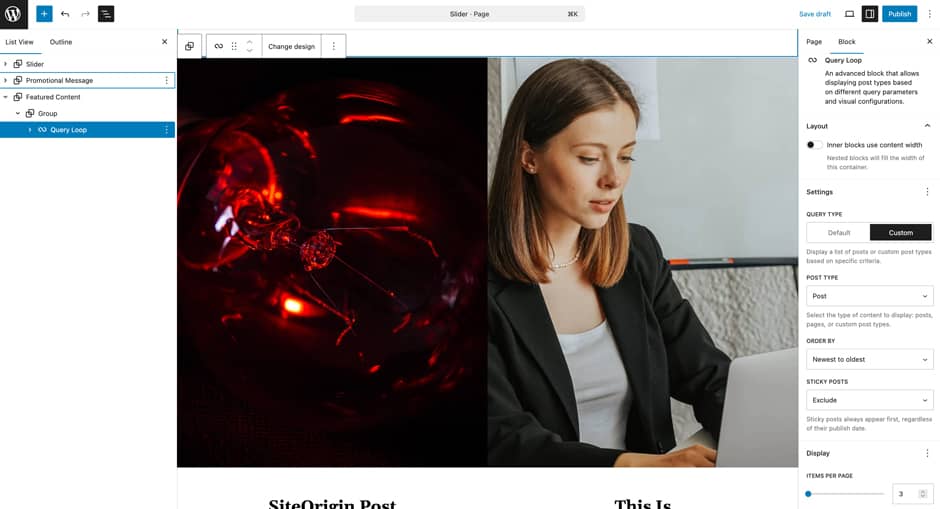
- Finally click “Save”, to save changes
Hero Content

Soundscape supports Hero Content pattern, this pattern allows you to display the best assets of your website to your audience in the most amazing way possible. So, you can set the media and words side by side for a richer layout. Also, add the Image, Heading, Paragraph, and button for the section. Display your best assets and customize them the way you want.
Here is how you add Hero Content:
- Click on “+” sign on block pattern tab to display Blocks and Pattern, Click on Pattern
- Select “Soundscape” to see list of pattern provided by Soundscape
- Scroll down to find “Hero Content” or type “Hero Content” in Search box
- Click to add or drag and drop in desired area
- Edit Hero Content accordingly you can add/edit, images, text, cover, button and so on
- Finally click “Save”, to save changes
Blog Section
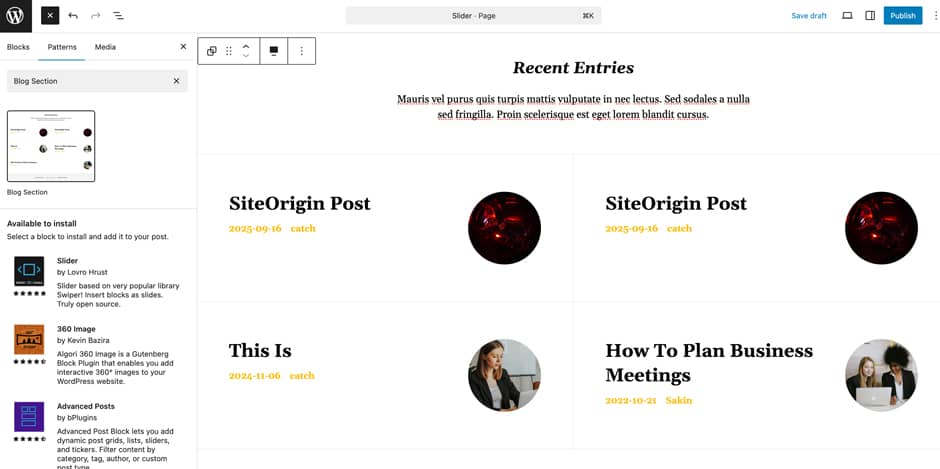
Soundscape supports Blog Section patterns, this pattern allows you to display your Post Type (posts/page/prducts) with the help of Query Loop. By default it displays Heading, Paragraph and the 4 latest posts.
Here is how you add Blog Section
- Click on “+” sign on block pattern tab to display Blocks and Pattern, Click on Pattern
- Select “Soundscape” to see list of pattern provided by Soundscape
- Scroll down to find “Blog Section” or type “Blog Section” in Search box
- Click to add or drag and drop in desired area
- Edit Blog Section, you can change the Post Type, Order By, Items Per Page and so on using the Query Loop block settings.
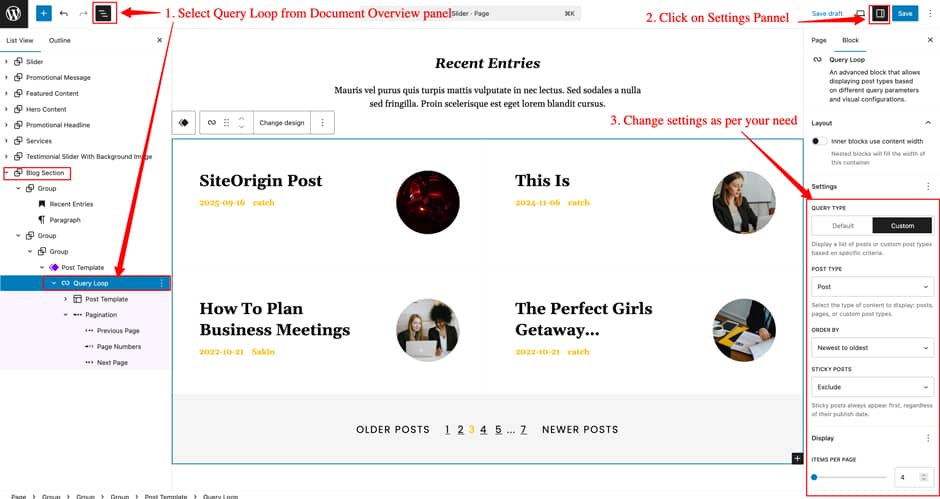
- Finally click “Save”, to save changes
How to to duplicate sections?
Duplicate section can be used if you want add similar section in your pattern.
For Example: If you want to add one more column in between your Featured Content Duplicate section can be used, as it will create similar section and you can edit the content accordingly.
Duplicate section is very easy step to add on particular sections in your pattern. It can be done in two ways via Clicking on content or Table of content (List View)
1. Step of Duplication By Clicking on content:
- Add the desired pattern, then click on the section you want to duplicate
- Click on the section you want to duplicate, after clicking tool bar will open and click the three buttons
- After clicking on the three dots menu on the tool bar, click on the “Duplicate” option to replicate your desired section or design
- Edit the section accordingly
- Click on “Save” button to save your changes
2. Steps of Duplication by using List View
- Add the desired pattern, then click on the section you want to duplicate
- Open the “List View” tab from top tool bar, to open the table of content
- Scroll down to the section that you want to duplicate
- Click on three dots menu and select “Duplicate” option to replicate your desired section or design
- Edit the section accordingly
- Click on “Save” button to save your changes
Templates in Soundscape
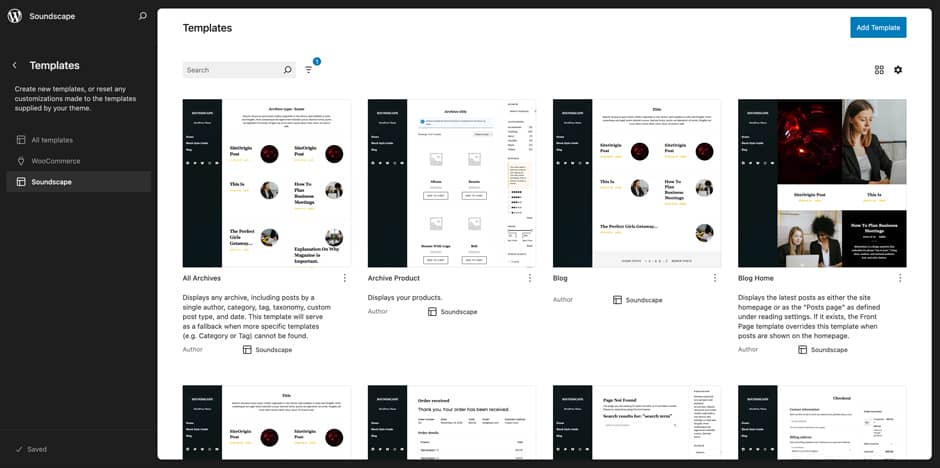
You can find 16 Templates provided by Soundscape. You can customize these templates if you feel like changing anything on a certain template and wish to see those changes across your site.
- All Archives
- Archive Product
- Blog
- Blog Home
- Index
- Order Confirmation
- Page: 404
- Page: Checkout
- Pages
- Product Search Results
- Search Results
- Single Page (No Sidebar)
- Single Post (No Sidebar)
- Single Posts
- Single Product
- Template Home Blogging
Editing Templates
- From your WordPress Dashboard, go to “Appearance => Editor”
- Click on “Templates => Soundscape”, it will load all Templates
- Now, you can use the Search Bar to search for any above mentioned template or just scroll to view existing template
- After searching the template, click on it to load that template on Editor. Template consist of Template Part, Patterns and Blocks
- If you want to see the List of Template Part, Patterns and Blocks used in the template, then click on “List View” panel. From this, you can click on the Element that you want to edit
- Now, you can edit the desire elements and after all the changes click on “Save” button
Blog Home
Soundscape Supports Blog Home template, this template is used to display static Front Page.
- From your WordPress Dashboard, go to “Appearance => Editor”
- Click on “Templates”, it will load all Templates, then in Search Box type “Blog Home”
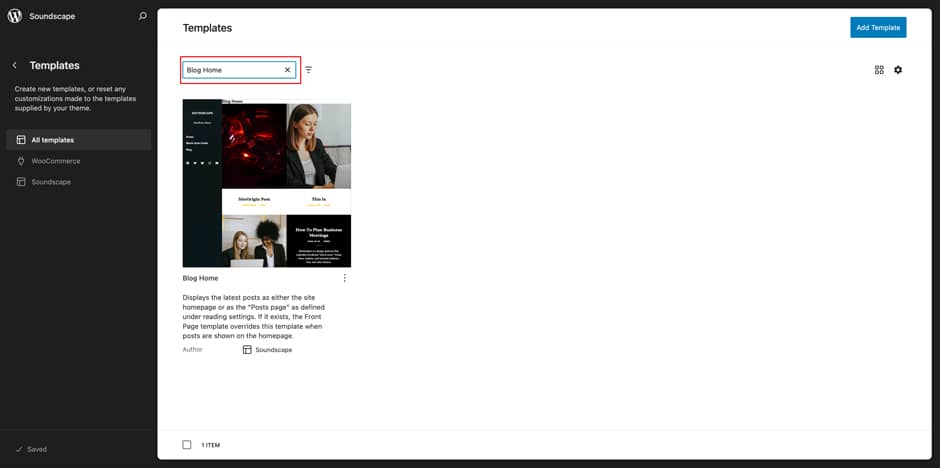
- Click on “Blog Home” template and will load the Blog Home template
- If you want to see the List of Template Part, Patterns and Blocks used in the template, then click on “Document View” panel. From this, you can click on the Element that you want to edit
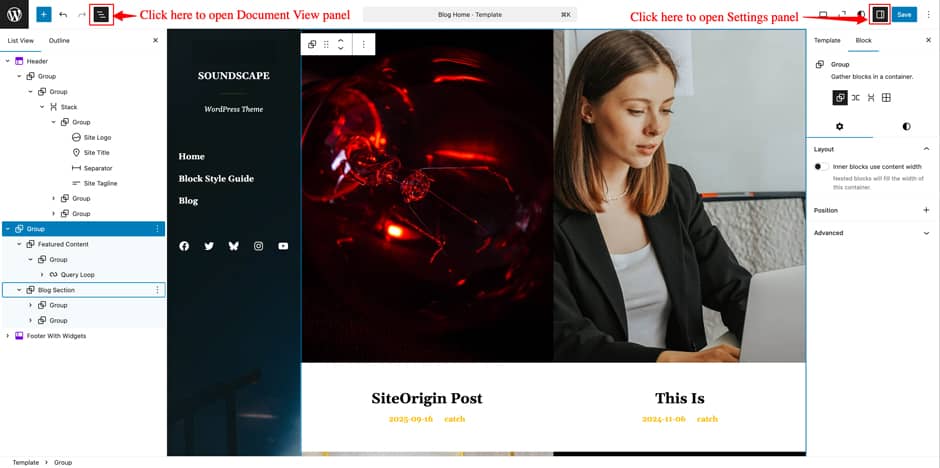
- If you want to see the Settings of each blocks then you can click on “Settings” panel
- Now, you can edit the desire elements and after all the changes click on “Save” button
- Note: This template consist of Template parts like Header, Footer with Widgets. So, if you edit block on those section then it will also update those template parts as well
Template Parts in Soundscape
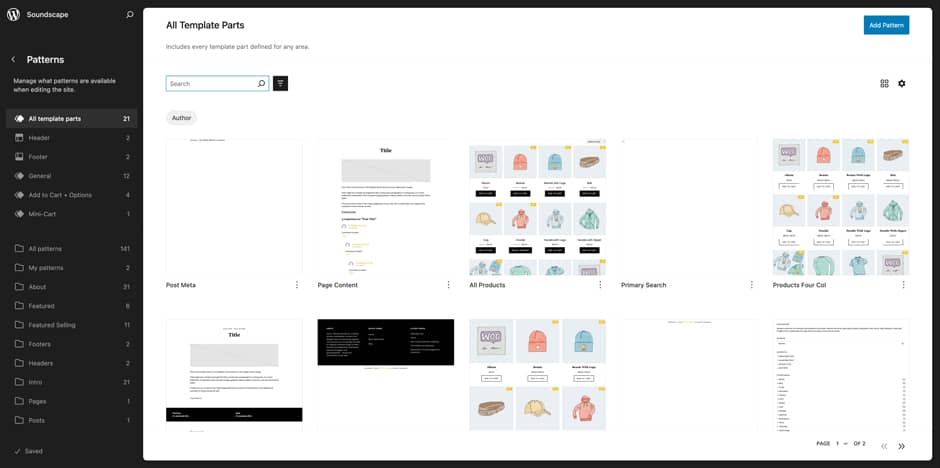
There are 11 Template Parts in Soundscape.
- All Products
- Comments Post Page
- Footer With Widgets
- Footer
- Header
- Page Content
- Post Content
- Post Meta
- Post Template
- Primary Search
- Products Collection
- Products Four Col
- Sidebar
- Woo Sidebar
Editing Template Parts
- From your WordPress Dashboard, go to “Appearance => Editor”
- Click on “Patterns => All template parts”, it will load all Template Parts
- Now, you can use the Search Bar to search for any above mentioned template parts or just scroll to view existing template parts
- After searching the template parts, click on it to load that template parts on Editor. Template Parts consist of Patterns and Blocks
- If you want to see the List of Patterns and Blocks used in the template parts, then click on “List View” panel. From this, you can click on the Element that you want to edit
- Now, you can edit the desire elements and after all the changes click on “Save” button
Change Log
1.2.1 (Released: June 30, 2026)
- Bug Fixed: Welcome panel background color issue in theme admin page
1.2 (Released: May 28, 2026)
- Added: Term description on archive product template
- Bug Fixed: Improved keyboard accessibility and restored visible focus outline
- Bug Fixed: Mini cart quantity badge color issue
- Bug Fixed: Resolved the mobile navigation background color issue after the WordPress update
- Updated: Renamed border-color slug to border-default-color to avoid conflict with WordPress core styles
- Updated: Minify custom js
- Updated: WordPress 7.0 ready
1.1 (Released: March 10, 2026)
- Added: Services pattern
- Added: Contact Form pattern
- Updated: Minor CSS
1.0.1 (Released: December 20, 2025)
- Bug Fixed: Keyboard focus issue with sub-menu visibility
- Bug Fixed: Removed commented function codes
- Bug Fixed: Made text strings translation-ready and ensured links within content are underlined
- Updated: WordPress 6.9 ready
1.0 (Released: November 24, 2025)
- Initial Release