
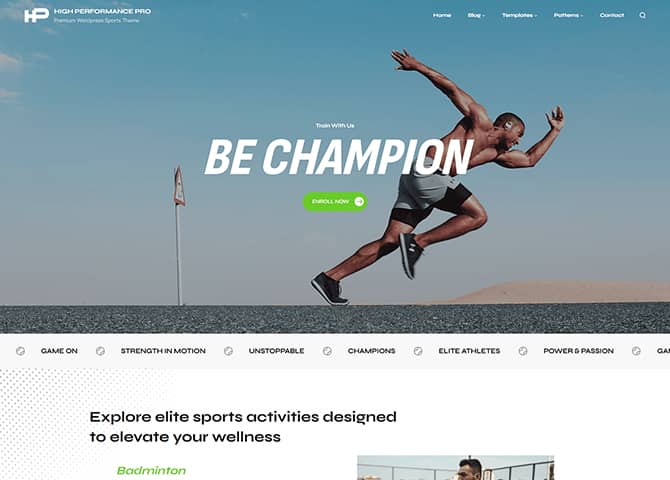
High Performance Pro is a premium, modern, and fully responsive block-based WordPress theme designed for sports clubs, teams, gym centers, performance academies, and versatile business websites, offering a perfect balance of speed, flexibility, and professional design. Built entirely with the WordPress Block Editor, it enables users to create fully customized websites visually without any coding, while maintaining clean code and SEO-optimized structure for better search engine visibility. The theme is fully WooCommerce compatible, making it easy to launch powerful online stores for sports gear, memberships, or services, and it includes both dark and light style variations for enhanced branding control. With an extensive library of ready-to-use block patterns, templates, and template parts, High Performance Pro allows you to quickly build engaging layouts such as homepages, service sections, portfolios, testimonials, pricing tables, blogs, and product pages with ease. It also comes bundled with the FSE Pro plugin, which adds advanced full site editing features, custom blocks, and enhanced design flexibility, making it a complete solution for creating high-performance, visually stunning, and conversion-focused WordPress websites.
Features
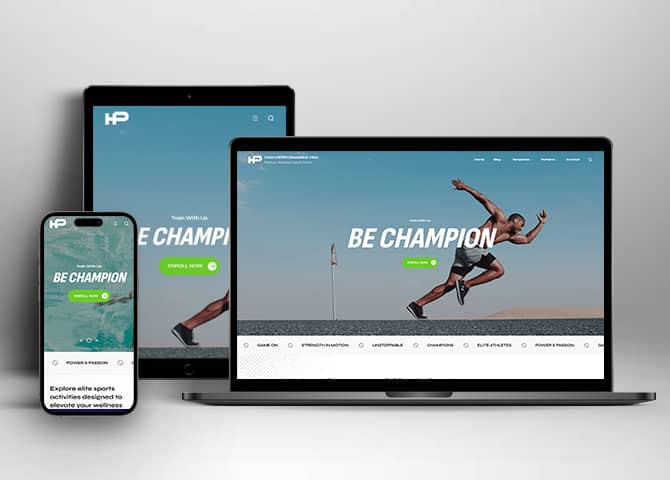
Responsive Design
One of the key features of our themes is that your website will magically respond and adapt to different screen sizes delivering an optimized design for iPhones, iPads, and other mobile devices. No longer will you need to zoom and scroll around when browsing on your mobile phone.
Webmaster Tools
Webmaster Tools option helps you to minutely manage your site. Firstly, it helps to verify the site in Google, Yahoo and Bing. Additionally, whether it is something like site optimization, keeping track of your site traffic or overseeing and altering your display settings, you can call the shots for you site through Webmaster tools. These tools also allow you to add to your site Header and Footer Scripts like Google Analytics, Site Stats, Facebook, twitter and much more.
Incredible Support
We have a great line of support team and support documentation. You do not need to worry about how to use the themes we provide, just refer to our Tech Support segment. Further, if you need to do advanced customization to your website, you can always hire our theme customizer!
Featured Image Slider
Featured Image Slider allows you to not only add images, but also write a description for them. If a descriptive caption would not suffice, you also have the option of providing a clickable link. This way, as per your unique needs, should you require, you can easily add a URL to your content.
Featured Content
Featured Content allows you to highlight your recent & popular posts on your website. It can either be displayed on Homepage or the entire site. You can add your title and sub-title for featured content, select the number of featured content, display Meta, select multiple categories, and enjoy displaying your featured & recent posts.
Services
Every website owner wants the world to know about the services they provide. It allows you to place the services you provide for your customers on the spotlight. Choose to display the services in 2 to 4 columns. Display your services on the homepage only or on the entire website.
Custom Fonts
You can choose different types of stylish and engaging fonts for your Site Title, Tagline, Headline Tags, Content Title, and Content Body. Choose the font that suits best for your website from the font family options and makes your website more striking.
Hero Content
You can now display the best assets of your website with the Hero Content feature. The feature allows you to highlight the most important content in a fashion that is easily attention-grabbing. You can enable the hero content either on Homepage or the entire site. Hero Content - the easiest way to display your strengths.
WordPress Standard Codes
Our code is secure and optimized. We do proper data validation and sanitization and follow core theme guidelines. Our developers are active contributors to WordPress theme review and WordPress core. Our themes will always be updated as things change in WordPress.
Testimonials
People are always curious about what your goods and services are really like. Since customer testimonials are candid and not by the company promoting the product, they assist in building trust. You can display testimonials on Homepage, the entire site or disable it completely.
Portfolio
Portfolio empowers you to showcase your professional skills and accomplishments to the world at large. Display your Portfolio in an elegant manner on the Homepage/Frontpage, the entire site or you can also disable it completely if you don’t need it. An astounding way to easily display your experience, skills, talent, and expertise.
Sections Sorter
Sections Sorter allows you to organize various sections on your website by manually sorting them. Simply drag and drop the sections to your desired position and display them orderly.The cool feature in this option is that you can not only rearrange the order but also can quickly edit those sections from Sections Sorter option if you want any changes.
Footer Editor
Footer Editor Options enables you to edit the content of the footer easily. You can either add HTML, plain text, or custom shortcodes which will be inserted into your theme automatically. You can use shortcodes like [the-year], [site-link] and [privacy-policy-link] for the current year, site link and privacy policy link respectively.
Full Site Editing
Customize your whole website design directly from the Front-End and build something magical. Change your site layout and add blocks/patterns directly on the site whilst working on the page content. Super easy to create dynamic content!
Custom Blocks
Enhance the pages of your website with the blocks. Generally, these custom blocks are more dynamic and have amazing designs. Create a page independently.
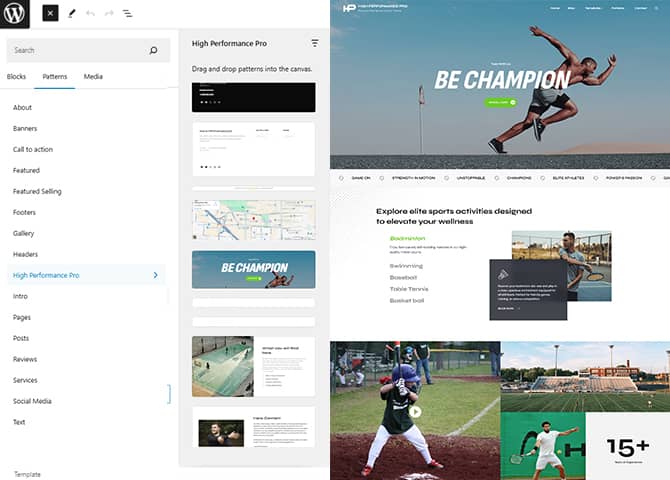
Multiple Block Patterns
Comes with a collection of predefined block design layouts, available from the patterns tab of the block inserter. Create an elegant layout that combines different blocks. Build Gracefully!
FSE Pro Plugin
This theme comes with the FSE Pro plugin as a bundle. FSE Pro is a Premium Full Site Editing WordPress Plugin that extends Gutenberg Blocks and Patterns to give your website a unique look and feel. This premium plugin provides you with more control over your site blocks and patterns to build your site with the premium design and creation tools.
More Features
- Responsive Design
- Alternative Styles
- Page Templates
- Color Options
- Featured Thumbnail
- Threaded Comments
- Dropdown Menu
- Gravatar Ready
- Localized for translations
- Custom Header / Logo
- Custom Menu
- Custom Footer
- Custom Background
- Custom Layout
- Custom Fonts
- Custom Homepage
- Custom CSS
- Support
- WooCommerce Ready
- WPML Ready
- Header Highlight Content
- Hero Content
- Portfolio
- Logo Slider
- News
- Events
- Testimonials
- Services
- Header Video
- Clean Header
- Full HD Screens
- Featured Content
- WordPress Standard Codes
- Promotion Headline
- Sections Sorter
- Teams
- Products
- Full Site Editing
- Block Based Theme
- Site Editor
- Patterns
- Blocks
- Template Editing
- Global Styles
Free Vs Pro (Premium)
| Free | Features | Pro (Premium) |
|---|---|---|
| Responsive Design | ||
| Super Easy Setup | ||
| Collapsible Service Lists (Block) | ||
| Contact Form With Info (Block) | ||
| Contact Form (Block) | ||
| FAQ (Block) | ||
| Featured Content (Block) | ||
| Featured Posts (Block) | ||
| Featured Products (Block) | ||
| Google Map (Block) | ||
| Header Media (Block) | ||
| Hero Content (Block) | ||
| Hero Content Full Width (Block) | ||
| Latest Posts (Block) | ||
| On Sale Products (Block) | ||
| Our Story | ||
| Portfolio with Video Popup (Block) | ||
| Products Carousel (Block) | ||
| Promotional Headline (Block) | ||
| Services (Block) | ||
| Slider (Block) | ||
| Stats (Block) | ||
| Team (Block) | ||
| Team Slider (Block) | ||
| Testimonial (Block) | ||
| Testimonial Slider (Block) | ||
| Top Rated Products (Block) | ||
| Woo Features (Block) | ||
| Archive | ||
| Footer Widgets | ||
| Footer Widgets With CTA | ||
| Footer | ||
| Hidden 404 | ||
| Hidden Comments | ||
| Hidden No Results | ||
| Hidden Post Meta | ||
| Hidden Post Navigation | ||
| Hidden Search | ||
| Post Header | ||
| Sidebar | ||
| FrontPage Template: Template Home Blogging | ||
| FrontPage Template: Template Home | ||
| Page Template: Page About Us | ||
| Page Template: Page Contact Us | ||
| Page Template: Page Faq | ||
| Page Template: Page Our Services | ||
| Page Template: Page Home Blogging | ||
| Sidebar Products | ||
| Template: Archive Product | ||
| Template: Single Product | ||
| Template: Single Product Vertical Gallery | ||
| Template: Taxonomy Product Category | ||
| Template: Archive | ||
| Template: Blog Image at Left | ||
| Template: Blog No Sidebar Full Width | ||
| Template: Blog Sidebar on Left | ||
| Template: Blog Sidebar on Right | ||
| Template: Single Page No Sidebar Full Width | ||
| Template: Single Page On Left | ||
| Template: Single Page On Right | ||
| Template: Single Post No Sidebar Full Width | ||
| Template: Single Post Sidebar On Left | ||
| Template: Single Post Sidebar On Right | ||
| Template: Single Post No Sidebar | ||
| Template: Home Blogging | ||
| Template: Home | ||
| Parts: All Products | ||
| Parts: Comments Post Page | ||
| Parts: Footer With Widgets And CTA | ||
| Parts: Footer With Widgets | ||
| Parts: Footer | ||
| Parts: Header With Cart | ||
| Parts: Header | ||
| Parts: Page Content | ||
| Parts: Post Template | ||
| Parts: Post Template 3 col | ||
| Parts: Post Template Image at Left | ||
| Parts: Post Template Standard | ||
| Parts: Post Template With Title | ||
| Parts: Product Collection | ||
| Parts: Product Filters | ||
| Parts: Sidebar | ||
| Parts: Woo Sidebar |
Theme Instructions
1. What You Can Build
High Performance Pro ships with everything needed to launch a complete website without writing code.
| Feature | What it gives you |
|---|---|
| 76 block patterns | Ready-made sections — hero banners, sliders, services, team, testimonials, pricing tables, FAQ, stats, call-to-action, contact forms, and more. |
| 6 full-page layouts | One-click homepages and inner pages: Home (Sports), Home (Business), Home (Blogging), About Us, Our Services, Contact Us, and FAQ. |
| 30+ templates | Pre-built layouts for blog, single posts/pages, search, 404, and the full WooCommerce shop. |
| 18 template parts | Swappable headers, footers, sidebars, and post layouts. |
| 2 style variations | A light Default look and a built-in Dark mode — switch with one click. |
| WooCommerce ready | Sell sports gear, memberships, or services with dedicated shop patterns and product templates. |
| 3 bundled fonts | Syne, Sofia Sans, and DM Sans — loaded locally for speed and privacy. |
| FSE Pro plugin | Bundled premium plugin that adds extra blocks, patterns, and design controls. |
2. Requirements
| Requirement | Minimum | Recommended |
|---|---|---|
| WordPress | 5.9 | 6.5 or newer (for all Site Editor features) |
| PHP | 5.6 | 7.4 or newer |
| MySQL / MariaDB | 5.6 / 10.1 | Latest stable |
| Browser | Any modern browser | Latest Chrome, Firefox, Safari, or Edge |
Required plugin: FSE Pro (bundled with the theme).
Optional plugins: Catch Themes Demo Import (for one-click demo import), WooCommerce (for a store), and Contact Form 7 (for the contact form pattern).
Quick check: if Appearance → Editor opens without errors, your site meets the requirements.
3. Installation & Activation
Step 1 — Download the theme
- Go to your Catch Themes My Account page.
- Under Downloads, click the file name to download
high-performance-pro.zip.
Safari users: Safari may auto-unzip downloads. Go to Safari → Settings → General and uncheck “Open ‘safe’ files after downloading” so you keep the original ZIP file.
Step 2 — Install & activate the theme
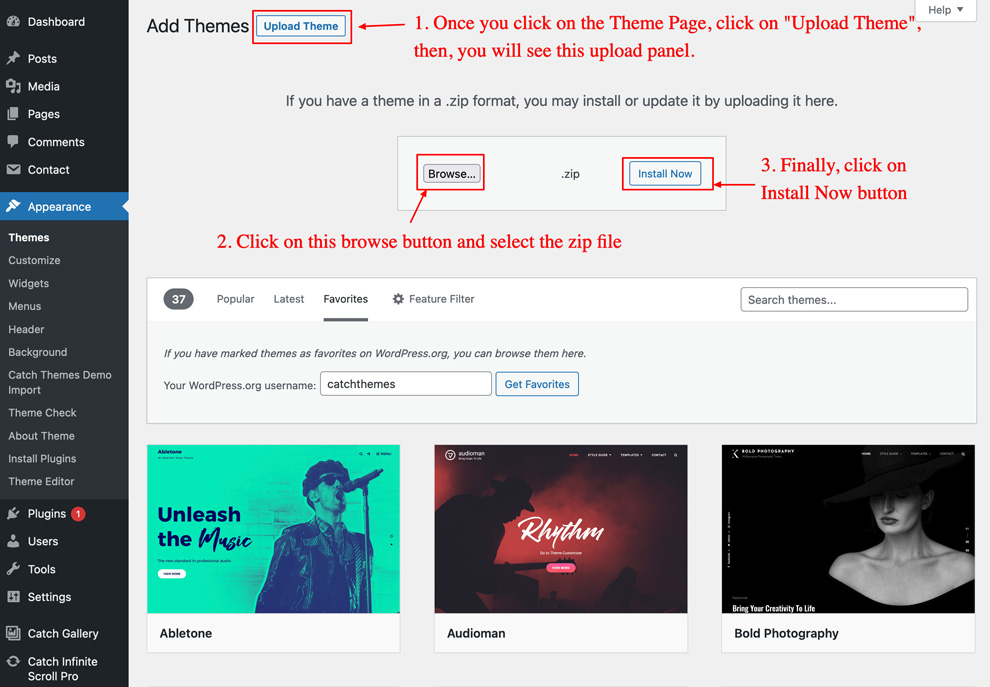
- In WordPress, go to Appearance → Themes → Add New → Upload Theme.
- Click Choose File, select
high-performance-pro.zip, and click Install Now. - When installation finishes, click Activate.
Step 3 — Install the bundled FSE Pro plugin
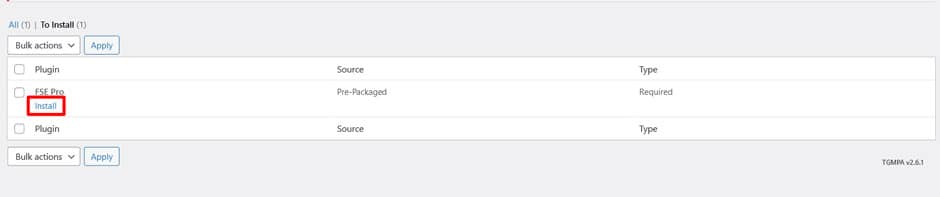
After activation, a notice appears at the top of your dashboard prompting you to install the required FSE Pro plugin.

- Click Begin installing plugins in the notice.
- Tick FSE Pro, choose Install from the dropdown, and click Apply.
- When it finishes, choose Activate and click Apply.
The plugin file is bundled inside the theme, so no separate download is needed for the first install. Manage plugin updates and its license later under Plugins → FSE Pro Plugin License.
Step 4 — Add your License Key (for one-click updates)
- Find your license key on your My Account → View Details and Downloads page.
- In WordPress, go to Appearance → High Performance Pro License.
- Paste the key into the License Key field, then click Save Changes and Activate License.
Important: use the License Key, not the Product Key. The license key is what enables automatic updates from your dashboard.
Step 5 — (Optional) Install supporting plugins
- Catch Themes Demo Import — for one-click demo import (the fastest way to start). Install it, then go to Appearance → Import Demo Data (see Section 6, Option A).
- WooCommerce — only if you plan to sell. Plugins → Add New → search “WooCommerce” → Install → Activate, then run its setup wizard.
- Contact Form 7 — only if you will use the Contact Form pattern. Install it the same way (see Section 18).
4. The Theme Info Page
After activation you get a dedicated theme dashboard at Appearance → High Performance Pro. It is your home base for licensing and helpful links.
From this page you can:
- Enter and activate your License Key for automatic updates.
- Read about the bundled FSE Pro plugin and what it adds.
- Jump to Theme Info, View Demo, Theme Instructions, Changelog, and Support.
- Leave a review of the theme.
5. Understanding the Site Editor
Everything in this theme is edited in one place: Appearance → Editor (the Site Editor). There is no Customizer. Learn these four building blocks first — the rest of this guide refers to them constantly.
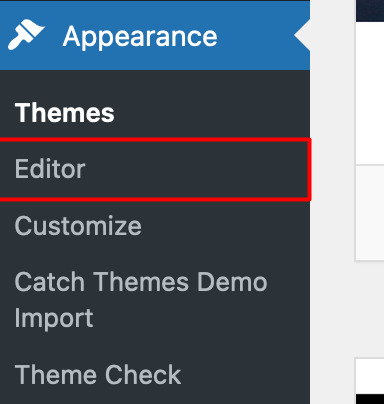
If you are on Site Front-End then you will see WP Admin Bar on the top of the page, click on “Edit Site” to open the Site Editor.

- [+] (top-left) — the Inserter. Add blocks and patterns here.
- List View (rows icon, top-left) — an outline of every block on the page. The easiest way to select a section without clicking around.
- Settings (gear, top-right) — options for the selected block (size, colors, spacing).
- Styles (half-moon, top-right) — site-wide colors and fonts.
- Save (blue button, top-right) — nothing goes live until you click this and confirm the items to save.
- Install the plugin: go to Plugins → Add New, search for “Catch Themes Demo Import”, then click Install Now and Activate. (You may also be prompted to install it from the recommended-plugins notice after activating the theme.)
- Open the importer: go to Appearance → Import Demo Data.
- Import: click the Import Demo Data button. Leave the tab open and do not refresh while it runs — a full import can take a few minutes.
- When it finishes, visit your site. The homepage, menus, and sample content are already set up. Now replace the demo text and images with your own.
- Run it on a fresh site. The importer adds the demo’s pages, posts, and images; it will not delete your existing content, but mixing demo content into an established site can get messy.
- Make sure recommended plugins (for example FSE Pro, and WooCommerce if your demo includes a shop) are active first, so all demo sections import correctly.
- After importing, check Settings → Reading to confirm the homepage, and review your menu under the header’s Navigation block.
- Go to Pages → Add New and give the page a title, for example “Home”.
- Click the [+] inserter (top-left) and open the Patterns tab.
- Choose the Pages category. You will see complete page layouts:
- Page Home Sports — for clubs, gyms, and teams
- Page Home — general business homepage
- Page Home Blogging — content- and blog-focused homepage
- Page About Us, Page Our Services, Page Contact Us, Page Faq
- Click the layout you want — the entire page is inserted instantly.
- Click any text or image to edit it, replacing the demo content with your own.
- Click Publish, then set the page as your homepage (next section).
- Go to Settings → Reading.
- Under Your homepage displays, select A static page.
- Set Homepage to the page you just built (for example, “Home”).
- (Optional) Set Posts page to a blank page named “Blog” to hold your blog feed.
- Click Save Changes.
- Open Appearance → Editor → Patterns → Template Parts.
- Open the part you want to change (for example, Header or Footer).
- Open List View, select the top-level header or footer block, and use the options menu (three dots) → Replace to choose a different design from the Patterns inserter.
- Click Save.
- Open Editor → Patterns → Template Parts → Header.
- Click the Site Logo block, then choose Replace and upload or select your logo.
- Drag the blue handles, or use the Settings (gear) panel, to set the logo width. Click Save.
- In the Site Editor, click the Navigation block in your header (or open Editor → Navigation).
- Use the [+] inside the block to add pages, custom links, categories, or submenus.
- Drag items to reorder them. Drag an item slightly to the right (indent) to turn it into a dropdown sub-item.
- Click Save.
- None — normal content width (about 780px).
- Wide width — stretches wider (up to about 1400px).
- Full width — edge to edge across the screen (great for hero and banner sections).
- Click [+] where you want the section to appear.
- Open the Patterns tab.
- Type the pattern name in the search box (for example, “pricing” or “team”). Searching by name is the quickest and most reliable way to find a specific pattern.
- Click the pattern. It drops straight onto the page, ready to edit.
- Synced — one master copy. Edit it once and every place it appears updates (perfect for a call-to-action you repeat across pages).
- Not synced — inserts a fresh, independent copy each time, which you can then edit freely.
- Open List View (the rows icon, top-left) and click the block or section you want to copy. List View makes it easy to select the right group rather than one small block inside it.
- Click the options menu (three dots) on the toolbar or in List View.
- Choose Duplicate. An exact copy appears directly below the original.
- Edit the copy’s text, image, or link, then click Save.
- Keyboard: select a block and press Ctrl + Shift + D (Windows) or ⌘ + Shift + D (Mac) to duplicate.
- Copy between pages: select the section, press Ctrl/⌘ + C, open the other page, and press Ctrl/⌘ + V.
- Reorder: use the up/down arrows in the toolbar, or drag the block in List View.
- Remove: the same options menu has Delete (or press Shift + Alt + Z).
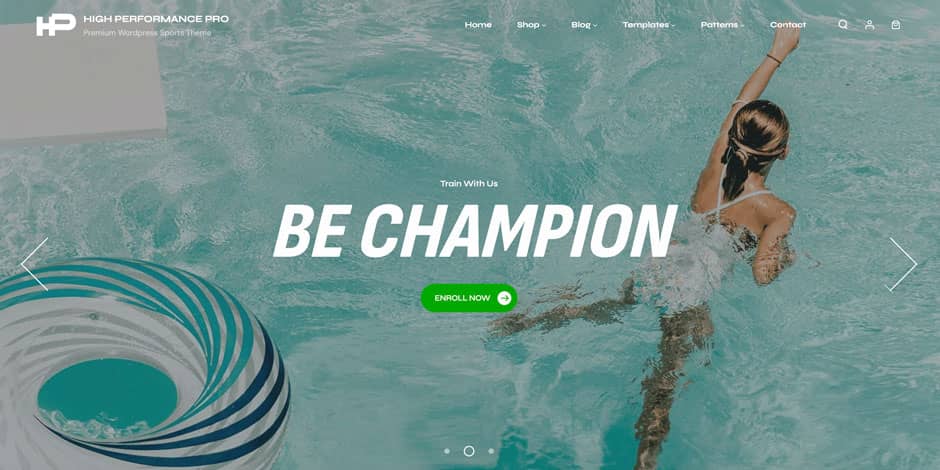
- Click [+] → Patterns, search Slider (or Slider Sports), and click it.
- It is best used at the top of the page with Full width alignment — select the slider and choose Full width from the toolbar if it is not already.
- Open List View to see each slide. Click a slide to edit its background image (select the image/Cover block → Replace), its heading text, and the Enroll Now button label and link.
- To add or remove slides, select a slide in List View and use Duplicate or Delete from its options menu (three dots).
- Click Save. Keep slide text short so it stays readable on phones.
- Click [+] → Patterns, search Text Carousel, and click it.
- Click any word in the strip to edit it. Add more items by selecting a text column in List View and choosing Duplicate.
- You can place several Text Carousels on the same page — each one scrolls independently, so a missing or extra strip will not affect the others.
- Click Save.
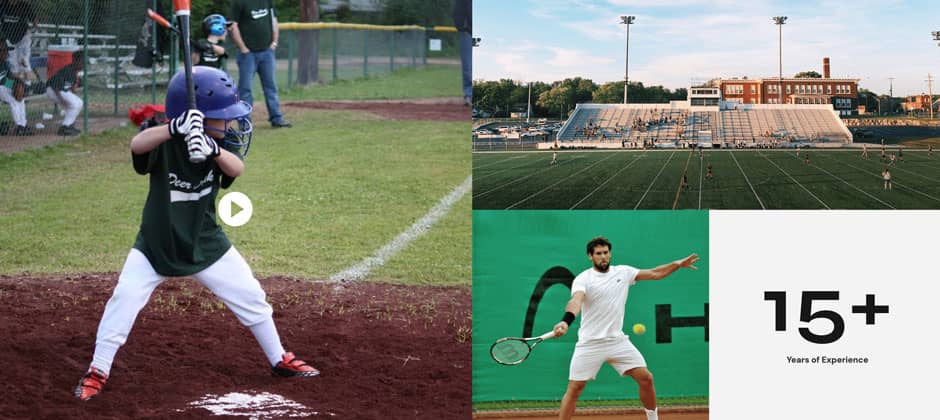
- Click [+] → Patterns, search Portfolio, and click Portfolio With Video Popup.
- Replace each gallery image (select the image → Replace).
- To set the video that opens, select the linked image/play button and update its link to your video URL (for example a YouTube or Vimeo link). The popup is handled by the theme automatically.
- Click Save, then test on the live site by clicking a thumbnail to confirm the video opens.
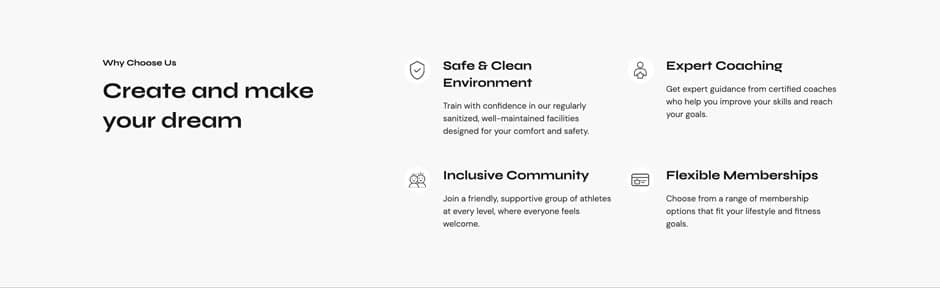
- Click [+] → Patterns, search Why Choose Us, and click it.
- Edit the section heading, then click each card to change its icon/image, title, and description.
- To change the number of cards, select a card column in List View and use Duplicate or Delete. Keep the columns even (for example 2, 3, or 4 across) so the grid stays tidy.
- Click Save.
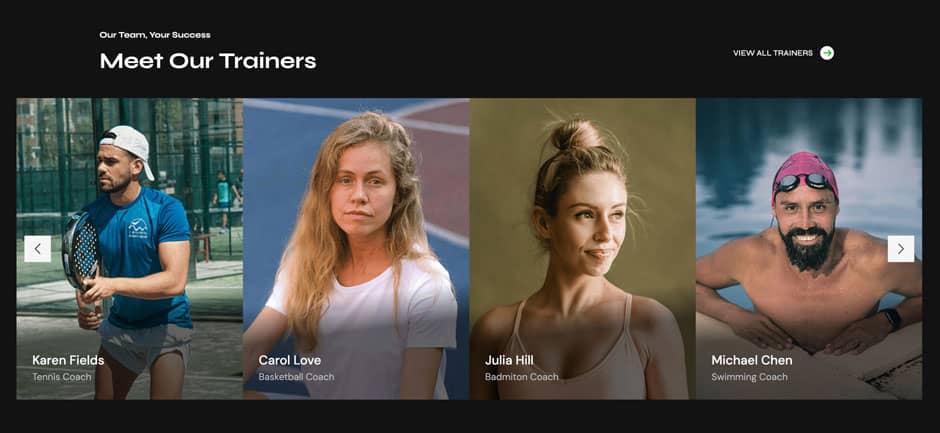
- Click [+] → Patterns, search Team Slider, and click it. (Prefer a static grid? Use Team instead.)
- Click each member to replace the photo and edit the name and role.
- Add or remove members by duplicating or deleting a member item in List View.
- Update the View All Trainers button to point at your team page, then click Save.
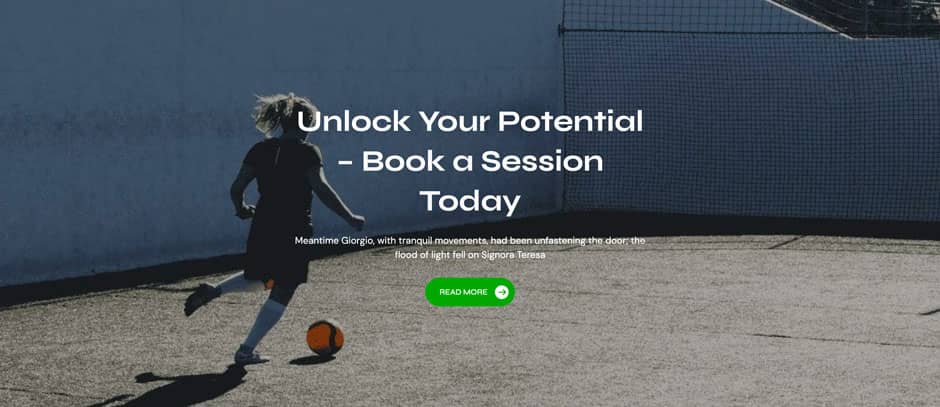
- Click [+] → Patterns, search Promotional Headline, and click it.
- Edit the headline text and the button label.
- Set the button link to your sign-up, membership, or contact page (select the button → link icon).
- Optionally change the background: select the band → Settings → Color → Background, or replace its background image.
- Click Save.
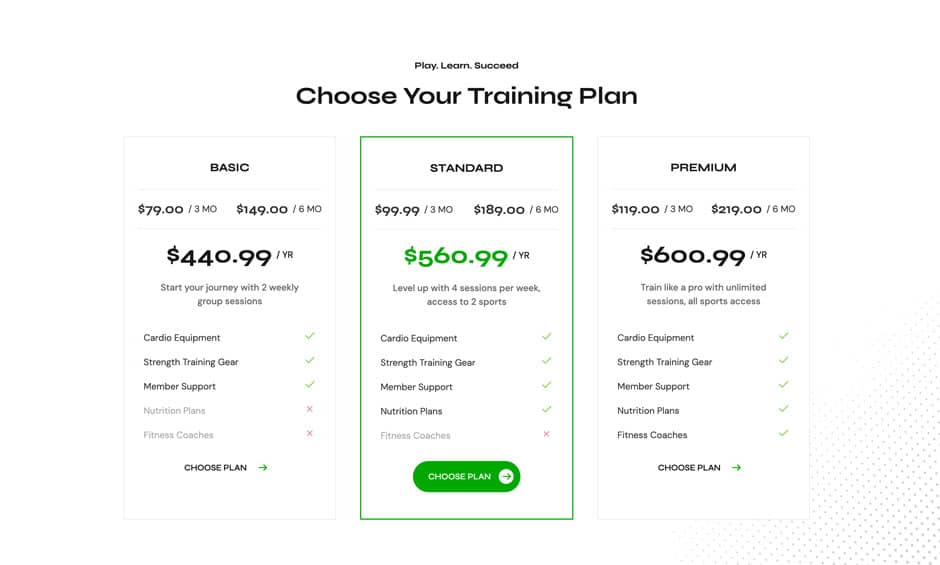
- Click [+] → Patterns, search Pricing, and click Pricing Table Advanced. (For a simpler version use Pricing Table.)
- Edit each plan’s name, price, and feature list (the feature lines are normal list items — click to edit, press Enter to add a line).
- Point each plan’s button at your checkout or sign-up link.
- To highlight a recommended plan, select its column and give it a different Background color under Settings.
- Add or remove a plan by duplicating/deleting a column in List View, then click Save.
- Publish at least a few blog posts first (and set a Featured Image on each).
- Click [+] → Patterns, search Latest Posts, and click it.
- This pattern pulls posts in automatically — you do not add them by hand. To control how many show or which categories appear, select the posts block and adjust its Settings (number of items, filter by category, show/hide date or author).
- Edit the section heading above the posts, then click Save.
- Click [+] → Patterns, search Time Table, and click it.
- Click each day and time cell to edit the text to match your real schedule.
- Replace the side image if you wish (select the image → Replace).
- Add or remove rows by duplicating/deleting a row in List View, then click Save.
- In Styles, click Browse styles.
- Choose Dark (or Default to return to light). The entire site updates instantly.
- Click Save.
- Buttons: Theme Default and Outline.
- Lists & detail blocks: Arrow icon, Pill, Checkmark, With arrow, With asterisk.
- Edit the page or post in the Block Editor.
- In the right sidebar, open the Page (or Post) tab and find Template.
- Click the current template name, choose Swap template, and select one.
- Go to Appearance → Editor → Templates.
- Click the template you want to change (for example Single Posts, Page, Blog, Search Results, or Page: 404). Click the pencil (Edit) to start editing.
- Add, remove, or rearrange blocks just like on a page. Use List View to find the part you want.
- Click Save.
- Go to Appearance → Editor → Patterns and open the Template Parts group (Header, Footer, Sidebar, and others).
- Click the part you want, then edit its blocks — change the logo, menu, footer text, widgets, and so on.
- To swap in a completely different design, select the part’s top block in List View and use the options menu (three dots) → Replace (see Section 8 for the full list of header and footer options).
- Click Save — the change appears on every page that uses that part.
- Create a blank page named Blog and set it as your Posts page under Settings → Reading.
- Choose a blog layout by assigning one of the Blog Page templates (Section 14).
- To change how the post list looks, edit Editor → Templates → Blog (or Index). The theme includes several post-list layouts: Standard, Image at Left, 3 Column, and With Title.
- Add the Featured Posts or Latest Posts patterns anywhere you want to spotlight articles.
- Turn comments on or off site-wide under Settings → Discussion.
- Turn them on or off for a single post in the editor: right sidebar → Post → Discussion → Allow comments.
- The comment area (form, list, and threaded replies) is part of the single-post template and the Comments template part — edit its wording or layout there if needed.
- Install the plugin: Plugins → Add New → search “Contact Form 7” → Install → Activate.
- Insert the Contact Form pattern on your contact page. The form now appears where the shortcode was — no extra steps needed.
- Set who receives messages: go to Contact → Contact Forms, open Contact form 1, click the Mail tab, and enter your email address in the To field. Save.
- Send a test message from your live site to confirm it arrives.
- Install and activate WooCommerce (Plugins → Add New).
- Run the WooCommerce setup wizard (store address, currency, payments, shipping).
- Add products under Products → Add New.
- Switch your header to Header With Cart And Account so visitors get cart and account links (see Section 8).
- Single Product and Single Product Vertical Gallery
- Archive Product (the shop) with Sidebar on Left and Sidebar on Right variants
- Product Category (taxonomy) archive
- Cart, Checkout, Order Confirmation, and Product Search Results
- Fonts are bundled and served locally — no external font requests, which is faster and better for privacy.
- Block-specific styles (such as the button outline) load only on pages that use them.
- For best results, add a caching plugin and serve images in modern formats. If you use an optimization plugin, make sure it does not block the theme’s small script, or sliders and the search toggle may stop working.
- The theme outputs clean, standards-based HTML with a sensible heading structure.
- Use one H1 per page (usually the page or post title), then H2/H3 for sections — the patterns already follow this.
- Always add descriptive alt text to images (select an image → Settings → Alt text). Pair the theme with an SEO plugin if you want titles, meta descriptions, and sitemaps.
- A visible focus outline and a “skip to content” link are built in for keyboard users.
- The header search toggle can be opened and closed with the keyboard.
- Keep good color contrast when you change palette colors — very light text on light backgrounds is hard to read.
- When an update is available, you will see it under Dashboard → Updates or Appearance → Themes.
- Click Update Now.
- Layout: content width 780px, wide width 1400px.
- Font families:
sofiasans,dmsans,syne,system-sans-serif,system-serif. - Spacing presets use fluid
min()values (slugs 8 through 120), so padding scales down on small screens automatically. - Color slugs:
background,foreground,primary,secondary,tertiary,text-link,body-text,title-color,button-color,button-hover-color,border-default-color, plus dark accents. - Translation ready: a
.potfile is in thelanguages/folder. Use Loco Translate or Poedit, or simply set Settings → General → Site Language. - RTL support: a right-to-left stylesheet loads automatically for languages such as Arabic and Hebrew — no setup needed.
- Text domain:
high-performance-pro.
| Building block | What it is | Where to find it |
|---|---|---|
| Templates | The layout of a type of page — the blog, a single post, the 404 page, the shop. | Editor → Templates |
| Template Parts | Reusable chunks shared across templates — Headers, Footers, Sidebars. Change one and it updates everywhere it is used. | Editor → Patterns → Template Parts |
| Patterns | Pre-designed sections (a hero, a pricing table, a team grid) you drop into any page or post. | The [+] Inserter → Patterns tab |
| Styles | Global colors, fonts, and spacing, plus the one-click Dark style variation. | Editor → Styles (half-moon icon) |
Getting around the editor
Golden rule: if a change is not showing on your live site, you almost certainly forgot to click Save.
6. Quick Start: Build Your Homepage in 5 Minutes
What you already have: as soon as you activate the theme, your site shows a fully designed homepage (the sports slider and home sections), so you are not starting from a blank screen.
Two ways to get started: import the entire demo site in one click, or build your pages one section at a time. Both are explained below — you can preview the finished result on the live demo.
Option A — One-click demo import (fastest)
High Performance Pro 2.0 and later supports one-click demo import through the free Catch Themes Demo Import plugin. It recreates the demo site for you — pages, sample posts, images, menus, and the homepage — so you only need to replace the demo content with your own.
Before you import:
Option B — Build from patterns
Prefer to build it yourself? Every section is available as a pattern, and each one comes pre-filled with the demo images and text, so inserting a full-page pattern instantly looks like the demo. The fastest route is to start from a full-page pattern:
7. Setting Your Homepage (Static Front Page)
Good to know: the theme ships with a designed homepage built in. If you set your own static page as the homepage (above), WordPress uses that page instead of the built-in design — which is usually what you want once you have built your own Home page. The built-in design then still appears on your Posts page (your blog).
Prefer to reuse the built-in home design? The theme includes editable home templates — Template Home and Template Home (Blogging). Create a page, then in the right sidebar open Page → Template and assign one of them, so your homepage keeps the theme’s ready-made layout that you can edit.
8. Headers & Footers
Headers and footers are Template Parts, so editing one updates it across your whole site.
Switching to a different header or footer
Available headers
Header, Header With Cart And Account, Header Media, Blog Header, Shop Header, Archive Header, Search Header, 404 Header, Taxonomy Product Header.
Available footers
Footer, Footer Widgets (a multi-column footer), Footer Widgets With CTA (adds a call-to-action band on top).
Note: this is a block theme, so there is no Appearance → Widgets screen. The “widgets” in the footer are simply blocks (recent posts, navigation, social icons, text, and so on) that you edit directly inside the footer template part.
Transparent header
Some hero and banner patterns are designed to sit behind a transparent header for a modern, edge-to-edge look. Use the Header Media pattern with a hero to achieve this. Contrast was tuned in recent updates so text stays readable on both light and dark backgrounds.
9. Logo, Site Title & Menus
Add your logo
Site title, tagline & favicon
Set your Site Title, Tagline, and Site Icon (the small favicon shown in the browser tab) under Settings → General. Once a logo is in place you can hide the text title from the Site Logo / Site Title block settings.
Navigation menus
On phones and tablets the menu automatically collapses into a tap-to-open icon, so you do not need a separate mobile menu.
10. Editing Content: Spacing, Layout & Alignment
Once a pattern is on the page, you shape it with three controls that appear for almost every block.
Width & alignment
Select a block and use the alignment button in its toolbar:
Spacing (padding & margin)
In the Settings (gear) → Dimensions panel you can set padding (space inside a block) and margin (space outside it). The theme provides ready-made spacing presets that scale down nicely on smaller screens, so picking a preset is usually better than typing a fixed pixel value.
Block spacing (gap)
For groups, columns, and rows, the Block spacing control sets the gap between the items inside — handy for tightening or loosening a grid of cards.
Colors, borders & typography per block
The Settings panel also lets you override Color (text, background, link), Typography (size, line height), and Border for the selected block. For consistency, prefer the theme’s preset colors and font sizes over custom values — presets update automatically when you switch styles or to Dark mode.
11. Using Block Patterns
Patterns are pre-built sections you insert anywhere. There are 76 in total, grouped into Pages, Headers, Footers, Featured sections, Banners, Sliders, and WooCommerce.
Insert a pattern
Note on categories: the inserter groups patterns into a few category tabs — the theme’s full-page layouts live under Pages, and others appear under WordPress’ built-in tabs (such as Featured, Banner, Header, Footer). The topic groupings used later in this guide (Hero, Social proof, Pricing, and so on) are just for reading — they are not separate tabs in the inserter, so when in doubt, search by name.
Replace a section with a different pattern
Select the section in List View, open the options menu (three dots) → Replace, and choose another pattern.
Save your own reusable / synced patterns
Built a section you want to reuse? Select it, open the options menu (three dots) → Create pattern, give it a name, and choose:
Find your saved patterns later under [+] Inserter → Patterns → My patterns, or manage them in Editor → Patterns.
How to duplicate a section or block
Duplicating is the fastest way to repeat something you have already styled — another service card, another pricing column, another slide, or a whole section.
Handy shortcuts:
Tip: to repeat the same section across several pages and have one edit update them all, save it as a synced pattern instead of duplicating (see above).
Worked examples: adding specific patterns
The steps below all start the same way: open the page or post you are editing, click the [+] inserter, open the Patterns tab, and type the pattern’s name in the search box. Click the result to drop it in, then edit it in place. You can preview every pattern live on the theme demo.
How to add the Slider pattern
This is the big rotating image banner at the very top of the demo homepage (“Be Champion”, “Power & Passion”, with an Enroll Now button).
How to add the Text Carousel
The scrolling strip of words that moves sideways across the page.

How to add Portfolio With Video Popup
An image gallery where each item opens a video in a popup window.
How to add Why Choose Us
The benefit cards under a heading like “Create and make your dream” (safe facilities, expert coaching, community, flexible memberships).
How to add Team Slider
The “Meet Our Trainers” carousel of coach/staff profiles with a View All Trainers link.
How to add Promotional Headline
A bold call-to-action band, like the demo’s “Unlock Your Potential” / “30% Off This Month” strip.
How to add Pricing Table Advanced
Membership tiers (Basic, Standard, Premium) with feature lists and buttons.
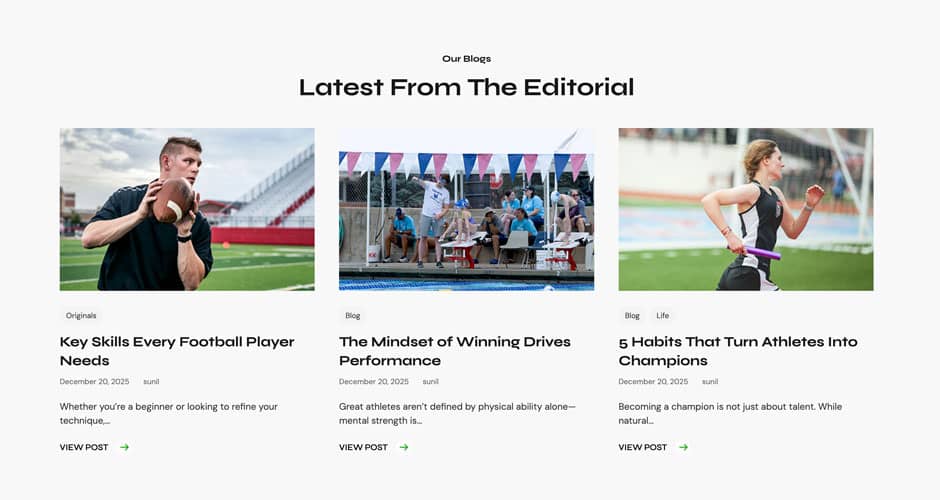
How to add Latest Posts
The “Latest From The Editorial” section that automatically shows your most recent blog articles.
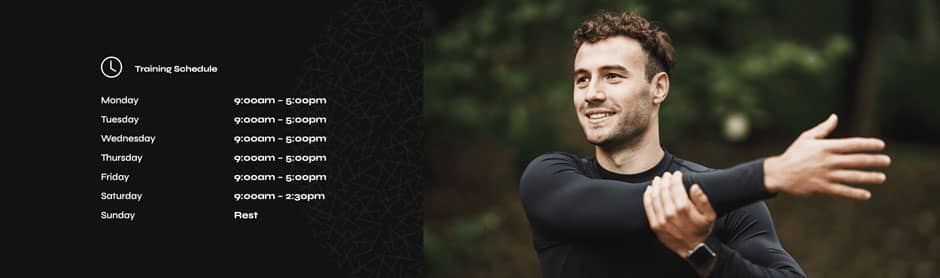
How to add Time Table
The training/class schedule grid (days and hours, with imagery).
Adding any other pattern
Every other pattern works the same way: [+] → Patterns → search its name (see the full list in Section 12) → click to insert → edit text and images in place → Save. The three things you will almost always edit are: text (click and type), images (select → Replace), and buttons/links (select the button → link icon). Use List View plus Duplicate/Delete to add or remove repeated items such as cards, slides, columns, or rows.
About the demo images: the placeholder photos that come with each pattern are part of the theme, not your Media Library, so you will not find them under Media. That is normal — just click an image and choose Replace to swap in your own (which then is saved to your Media Library).
12. Pattern-by-Pattern Guide
A quick reference to the most useful sections — what each one is for and how to make it yours. Insert any of them from the Patterns tab as described above.
Full-page layouts (Pages category)
Complete, ready-to-edit pages: Page Home Sports, Page Home, Page Home Blogging, Page About Us, Page Our Services, Page Contact Us, Page Faq. Start here, then swap or delete the sections you do not need.
Hero & banner sections
| Pattern | Use it for | Tips |
|---|---|---|
| Hero Content / Hero Content With Highlights / Hero Content Full Width | The headline area at the very top of a page. | Replace the background/side image, edit the headline and the button link. Use Full Width alignment for an edge-to-edge look. |
| Slider / Slider Sports | A rotating set of large banner slides. | Edit each slide’s image and text. Keep slide text short so it stays readable on mobile. |
| Header Media | A banner strip used under a transparent header on inner pages. | Pair with the transparent header (see Section 8). |
| Promotional Headline | A bold call-to-action band. | Point the button at your sign-up or contact page. |
| Stats / Intro Stats | Headline numbers (members, wins, years). | Replace the numbers and labels; keep to 3–4 items for balance. |
Content & marketing sections
| Pattern | Use it for |
|---|---|
| Services / Our Programs | A grid of what you offer, each with an icon/image, title, and short description. |
| Our Story | An “about” block pairing an image with a paragraph of text. |
| Featured Content / Key Features / Why Choose Us | Highlight selling points in columns. |
| How It Works / Feature Steps | A numbered, step-by-step process. |
| Collapsible Service Lists | Expandable rows that save space — click to reveal details. |
| Video | A featured video with a poster image. |
| Text Carousel | A scrolling strip of words/phrases. You can place several on one page and each runs independently. |
| Time Table | A class or match schedule grid. |
Social proof & people
| Pattern | Use it for |
|---|---|
| Testimonial / Testimonial Slider / Testimonials With Stats | Customer or member quotes, optionally combined with headline numbers. |
| Team / Team Slider | Coaches, trainers, or staff with photos and roles. |
| Portfolio With Video Popup | A gallery where items open a video in a popup. |
Pricing & conversion
| Pattern | Use it for |
|---|---|
| Pricing Table / Pricing Table Advanced | Membership or package tiers. Edit prices, feature lists, and button links; highlight your recommended plan. |
| FAQ | Expandable question-and-answer rows. |
| Contact Form / Contact Form With Info | A contact section. The form requires the free Contact Form 7 plugin — see Section 18. |
| Google Map | An embedded map of your location. |
Blog sections
Latest Posts and Featured Posts pull in your most recent articles automatically — great for a homepage. Blog Header and Post Header style the top of your blog and single posts.
WooCommerce sections (require WooCommerce)
Featured Products, Featured Categories, Products Carousel, On Sale Products, Top Rated Products, Cross Sells Products, Shop Offer, Shopping Features, Woo Features, Secure Transactions, Product FAQ, Sidebar Products. These display real products once WooCommerce is active and you have added items.
About sliders and carousels: the Slider, Testimonial Slider, Team Slider, Products Carousel, and Text Carousel are powered by the theme and FSE Pro. You can place multiple carousels on the same page and each works independently.
13. Global Styles: Colors, Fonts & Dark Mode
Open Editor → Styles (the half-moon icon, top right). Changes here apply across your whole site at once.
Switch to Dark mode (style variations)
Change colors
Go to Styles → Colors → Palette. Editing a preset re-brands every place it is used. The presets most worth setting to your brand:
| Preset | Controls |
|---|---|
| Button (default green #00A800) | Button background and accent color |
| Text Link | Links throughout the site |
| Title Color | Headings |
| Body Text | Paragraph text |
| Background / Primary / Secondary / Tertiary | Section background shades |
Change fonts
Go to Styles → Typography. The theme bundles three font families you can assign — Syne, Sofia Sans, and DM Sans — plus system fonts. Set heading fonts under Styles → Typography, then the Headings element.
Block styles (alternate looks for a block)
Select a block and open the Styles tab in its settings to pick an alternate look:
14. Templates & Sidebar Layouts
This theme controls sidebars through alternate templates — you pick a layout per page or post.
Assign a template to a page or post
| For Pages | For Posts | For the Blog |
|---|---|---|
| No Sidebar Full Width Sidebar On Right Sidebar On Left Page No Title |
No Sidebar Full Width Sidebar On Right Sidebar On Left |
Blog Page No Sidebar Full Width Sidebar on Left Sidebar on Right |
Edit what is inside the sidebar
The sidebar is a Template Part. Edit it via Editor → Patterns → Template Parts → Sidebar and add any blocks you want — recent posts, a search box, categories, an image, or a call-to-action.
Editing templates
A template is the layout used for a whole type of content — for example every single post, every page, the blog list, search results, or the 404 page. Edit one template and every matching page updates at once.
Add a brand-new template: in Editor → Templates, click + Add New Template and choose what it is for. The theme also ships extra ready-made templates (such as the sidebar layouts in the table above) that you assign per page from the Template menu — you do not have to build those yourself.
Undo your changes: if you edit a theme template and want the original back, open the template, click the options menu (three dots), and choose Clear customizations (or Reset). This restores the template the theme shipped with.
Editing template parts
A template part is a reusable chunk shared by many templates — the Header, Footer, and Sidebar. Because the same part is reused everywhere, editing it once updates your whole site.
Create a new template part: in Editor → Patterns, click the + next to Template Parts, give it a name, and pick an area (General, Header, or Footer). You can then drop it into any template.
15. Blog Setup
Tip: set a Featured Image on every post (right sidebar → Post → Featured image) so grids and lists look their best.
16. Comments
Comments use WordPress’ built-in system and are styled to match the theme.
17. Search & the 404 Page
Search
The header includes a search toggle — click the magnifier to open the search box, and it is fully keyboard accessible (you can open and close it with the keyboard). Search results use the Search template, which you can edit under Editor → Templates → Search Results.
The 404 (page not found) page
When a visitor reaches a missing URL they see the 404 template. Edit it under Editor → Templates → Page: 404 — a good place to add a friendly message, a search box, and links back to your main pages.
18. Contact Form Setup
The Contact Form and Contact Form With Info patterns already include a Contact Form 7 shortcode — you just need the free plugin installed so it turns into a working form. Good news: the shortcode points to Contact Form 7’s default form (“Contact form 1”), which exists automatically, so there is usually nothing to paste.
If the page shows the shortcode text instead of a form, Contact Form 7 is not active — install/activate it (step 1). If you built your own form with a different name, open it in Contact Form 7, copy its shortcode, and replace the one in the pattern’s Shortcode block.
Tip: add an anti-spam measure (Contact Form 7 supports reCAPTCHA and Akismet) before going live.
19. WooCommerce / Online Store
High Performance Pro is fully WooCommerce compatible.
Setup
Store templates (already built for you)
The theme includes ready-made WooCommerce templates — no setup needed:
Edit any of them in Editor → Templates.
Store sections
Build merchandising sections with the WooCommerce patterns listed in Section 12 — Featured Products, On Sale Products, Products Carousel, Cross Sells, and more.
WooCommerce block-supported patterns
These patterns are built on WooCommerce blocks (such as Products, Product Collection, and Cart/Checkout blocks). They only appear — and only show real data — when WooCommerce is active and you have added products. Insert them the usual way: [+] → Patterns → search the name.
| Pattern | What it shows | Good for |
|---|---|---|
| Featured Products | A hand-picked or featured set of products. | Homepage highlight row |
| Featured Categories | Links to your main product categories with images. | Helping shoppers browse by type |
| Products Carousel | A sliding row of products. | Showing many items in a small space |
| On Sale Products | Products currently on sale. | Promotions and seasonal offers |
| Top Rated Products | Best-reviewed products. | Social proof / bestsellers |
| Cross Sells Products | Suggested related products. | Cart and product pages |
| Product FAQ | Expandable shipping/returns/product questions. | Reducing pre-sale doubts |
| Shop Offer / Shopping Features / Woo Features | Banners for offers and store benefits (free shipping, returns, etc.). | Building trust on shop pages |
| Secure Transactions | A trust/badge strip about safe payments. | Checkout reassurance |
| Sidebar Products | A compact product list for sidebars. | Shop sidebar widgets |
Editing tips: select a WooCommerce block and open its Settings (gear) to choose how many products show, which categories to pull from, the column count, and whether to display price, rating, or the Add to Cart button. To curate exact products, use the block’s hand-picked option where available.
Store page templates (Single Product, Shop/Archive, Cart, Checkout, Order Confirmation) are covered above under “Store templates” and are edited in Editor → Templates.
20. Performance, SEO & Accessibility
Performance
SEO
Accessibility
21. Updating the Theme & License Key
With a saved, activated license key (Section 3, Step 4), updates arrive automatically:
No license key means no automatic updates. You can still update manually by uploading the newer ZIP. Your content lives in the database, not the theme, so it stays safe — but always take a full backup before updating if you have added custom code.
22. Developer Notes
A light reference for developers. End users can skip this section.
Design tokens (theme.json)
Note: the border slug is border-default-color (renamed from border-color to avoid clashing with WordPress core). Update any custom CSS that referenced the old slug.
Custom block styles
Registered in inc/block-styles.php: core/button gets Theme Default and Outline; other blocks get Arrow icon, Pill, Checkmark, With arrow, and With asterisk. assets/css/button-outline.css is enqueued per-block so it loads only when a button is present.
Child theme
Create a folder with a style.css whose header sets Template: high-performance-pro, enqueue the parent stylesheet from the child’s functions.php, then override any template or part by copying the matching .html file into the child’s templates/ or parts/ folder. Add custom patterns by dropping a .php file with a standard pattern header into the child’s patterns/ folder.
23. Translation & RTL
24. Troubleshooting & FAQ
I don’t see the “Pages” full-page patterns. Make sure the theme is activated and the FSE Pro plugin is installed and active, then refresh the Site Editor.
My changes aren’t showing on the live site. Click Save (top right) and confirm the items. Clear any caching plugin or CDN cache and hard-refresh your browser (Ctrl/Cmd + Shift + R).
I can’t find the Customizer. This is a Full Site Editing theme — there is no Customizer. Everything is in Appearance → Editor. Title, Tagline, and Site Icon are in Settings → General.
The theme update option doesn’t appear. Add and activate your License Key under Appearance → High Performance Pro (Section 21).
A pattern looks broken or empty. WooCommerce patterns need WooCommerce installed with products added; blog patterns need published posts; the Contact Form needs Contact Form 7.
My contact form doesn’t send / shows a shortcode. Install and activate Contact Form 7, then make sure the correct shortcode is in place and the Mail tab has a valid recipient address (Section 18).
My slider, carousel, or search toggle stopped working. An optimization or “defer JavaScript” plugin may be blocking the theme’s script. Exclude custom.min.js from optimization. Multiple carousels per page are supported.
A header overlaps my content / text is unreadable. Use a header designed for that page type (for example, Header Media for hero banners) and make sure you are on the latest theme version.
How do I edit the footer copyright? Go to Editor → Patterns → Template Parts → Footer, click the text, edit it, and click Save.
Where do I get help? Visit the Catch Themes support forum, or your My Account page for premium support.
25. Frequently Asked Questions
Many common questions about block themes and Full Site Editing — how the Site Editor works, templates and template parts, patterns, global styles, and more — are answered in the official Catch Themes FSE FAQ.
Read the full FAQ here: https://catchthemes.com/fse-faq/
High Performance Pro is built by Catch Themes and is based on the Catch FSE WordPress theme. Distributed under the GNU GPL v2 or later.
Change Log
2.3 (Released: September 01, 2026)
- Added: Header Announcement Bar pattern
- Added: Visual Highlights With Round Images pattern
- Bug Fixed: Header search z-index issue
- Updated: Minor CSS & JS
- Updated: WordPress 7.1 ready
2.2 (Released: August 06, 2026)
- Added: Quick View support for products
- Added: Page Home Ecommerce Pattern
- Added: Header with Overlay template part and pattern
- Added: New patterns for Ecommerce demo
- Featured Categories
- Featured Category with Product Slider
- Header Media Ecommerce Slider
- New This Week
- Mega Menu Pattern
- Products Carousel
- Top Rated Products
- Bug Fixed: Welcome panel background color issue in theme admin page
- Removed: Extra unused parts
- Updated: Product cards with secondary image previews on hover
- Updated: Product Image Gallery replaced by new WooCommerce Product Gallery block
- Updated: WooCommerce page templates
- Updated: Minor CSS
- Updated: theme.json file
2.1 (Released: June 25, 2026)
- Bug Fixed: Made text strings translation-ready on newly added patterns
- Bug Fixed: Missing icons on Woo Features pattern
- Removed: Extra unused templates
- Updated: Refined theme.json configuration
- Updated: Text Carousel pattern with dynamic icon support for easier customization
- Updated: Sports Home Templates with sports patterns
- Updated: WordPress 7.0 ready
2.0 (Released: June 21, 2026)
- Added: Support for one click demo import via Catch Themes Demo Import plugin
- Added: Demo files
- Added: theme-instructions.html file for easy theme instructions access
- Bug Fixed: Duplicate block pattern slugs - Testimonials With Stats and Template Home Sports were registered under the same slugs as other patterns, causing the wrong design to show on the home template
- Bug Fixed: Home (Sports) layout showed a "Pattern Placeholder" because it referenced a testimonials pattern that did not exist
- Bug Fixed: WooCommerce sidebar template part referenced a missing pattern and now uses the products sidebar
- Replaced: Unnecessary png image to jpg image
1.0.4 (Released: June 10, 2026)
- Updated: Improved contrast for links and buttons to enhance visibility
- Updated: Renamed border-color slug to border-default-color to avoid conflict with WordPress core styles naming
1.0.3 (Released: May 14, 2026)
- Bug Fixed: Updated textCarousel to support multiple instances on the page instead of just one
- Bug Fixed: Search accessibility by adding keyboard support to close the search toggle
- Bug Fixed: Adjusted transparent header styling for proper contrast on light backgrounds on editor
- Updated: Replace text reference from Catch Magazine to High Performance
1.0.2 (Released: May 10, 2026)
- Bug Fixed: Improved keyboard accessibility and restored visible focus outline
- Bug Fixed: Replaced email address with a generic placeholder
- Bug Fixed: Issue with image licensing details in readme.txt
- Bug Fixed: Heading hierarchy and image alt text issues
- Bug Fixed: Button color contrast updates for accessibility
- Removed: Unused function of social links icons
- Updated: Theme description
1.0.1 (Released: April 29, 2026)
- Bug Fixed: Skip to content accessibility link issue
- Bug Fixed: Email id valid domain name
- Bug Fixed: Accessibility issue with anchor tags when using Tab navigation
- Updated: Minify custom js
- Removed: Unused Raleway font
- Updated: Adding escape html on 404-header pattern
- Updated: Issue with demo image licensing information
- Updated: Prefixed functions and variables in custom.js
1.0 (Released: April 20, 2026)
- Initial Release
Satisfaction Guarantee
We make sure our customers are fully satisfied with our WordPress themes and meet their expectations. If you are not satisfied with your purchase, you are entitled to our 30-Day 100% Money Back Guarantee. No risks, Buy with Confidence!