
a)Using the WordPress Administration Panel
You can download Plugins directly to your blog by using the Add New Plugins option in the Plugins sub-menu.
- After purchasing FSE Pro Plugin, go to My-Account page
- Then on the Download Section, click on File name to download your plugin fse-pro.zip file
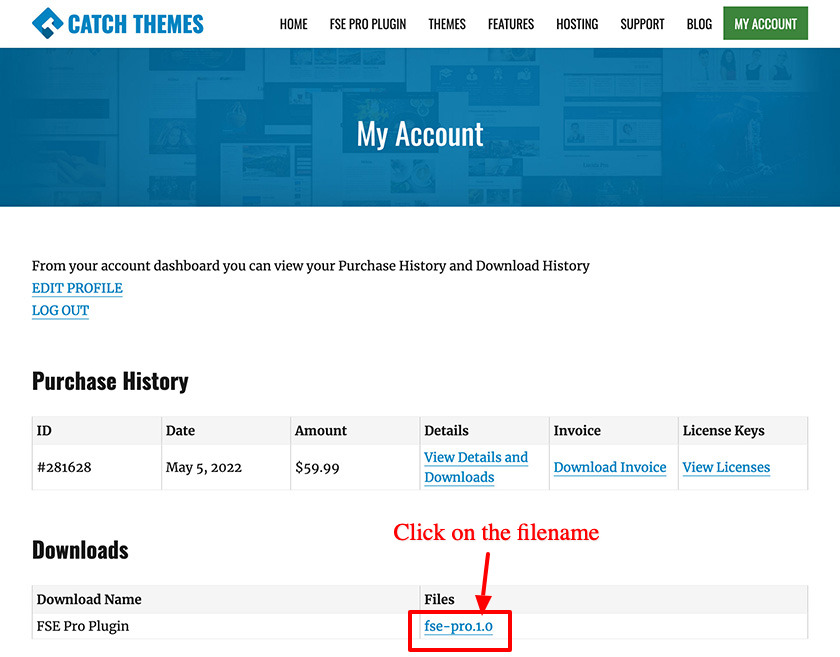
- Note: Some modern browser like Safari has an auto zip extractor and will extract the zip file as soon as you download the zip file. In this case, open Safari and go to “Safari => Preferences” and in the “General” tab, uncheck Open “safe” files after downloading. This will stop Safari from automatically unzipping the files and then you can download zip file
- Log in to the WordPress Administration Panel
- Go to “Plugins => Add New”
- Click on “Uploads” and Browse the downloaded file fse-pro.zip from the desktop where you have it downloaded
- Click on “Install Now” to install the plugin
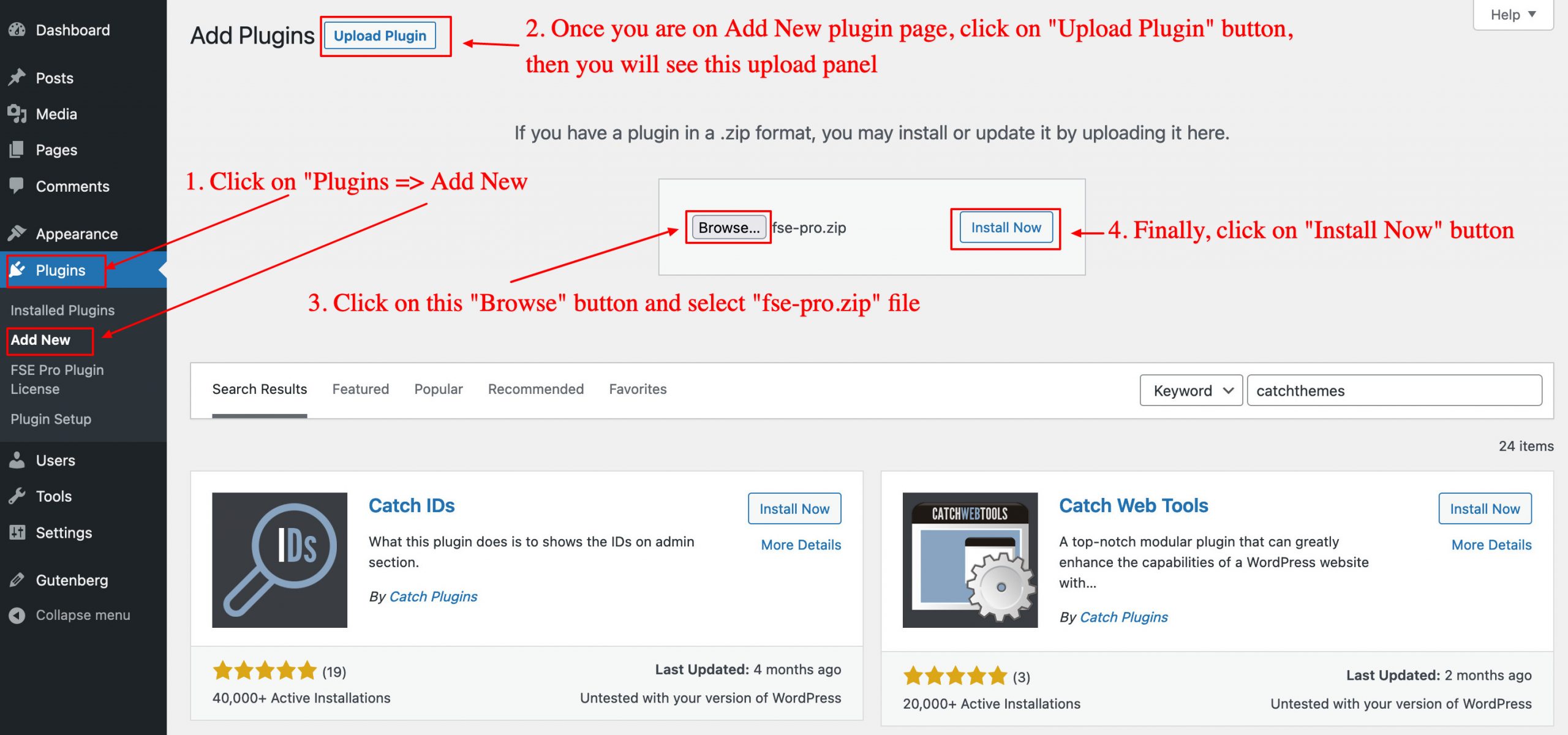
- After it’s installed, click on “Activate Plugin” button to Active the Plugin
b)Manual Installation using FTP
To add a new Plugin to your WordPress installation, follow these basic steps:
- After purchasing FSE Pro Plugin, go to My-Account page
- Then on the Download Section, click on File name to download your plugin fse-pro.zip file
- Unzip fse-pro.zip to your Desktop
- Using an FTP client to access your host web server. Go to /wp-content/plugins/ and make sure that you do not already have a fse-pro folder installed. If you do, then back it up and remove it from /wp-content/plugins/ before uploading your copy of Catch Under FSE Pro
- Upload Catch Under FSE Pro pugin to /wp-content/plugins/
- Activate Catch Under FSE Pro through “Plugins”, in your WordPress Dashboard