
Case Study Block in FSE Pro can be used to highlight any content. You can easily customize its content such as “Background Image”, Text and also add URL
- Click on “+” sign on the top bar to display Blocks and Pattern, Click on Pattern
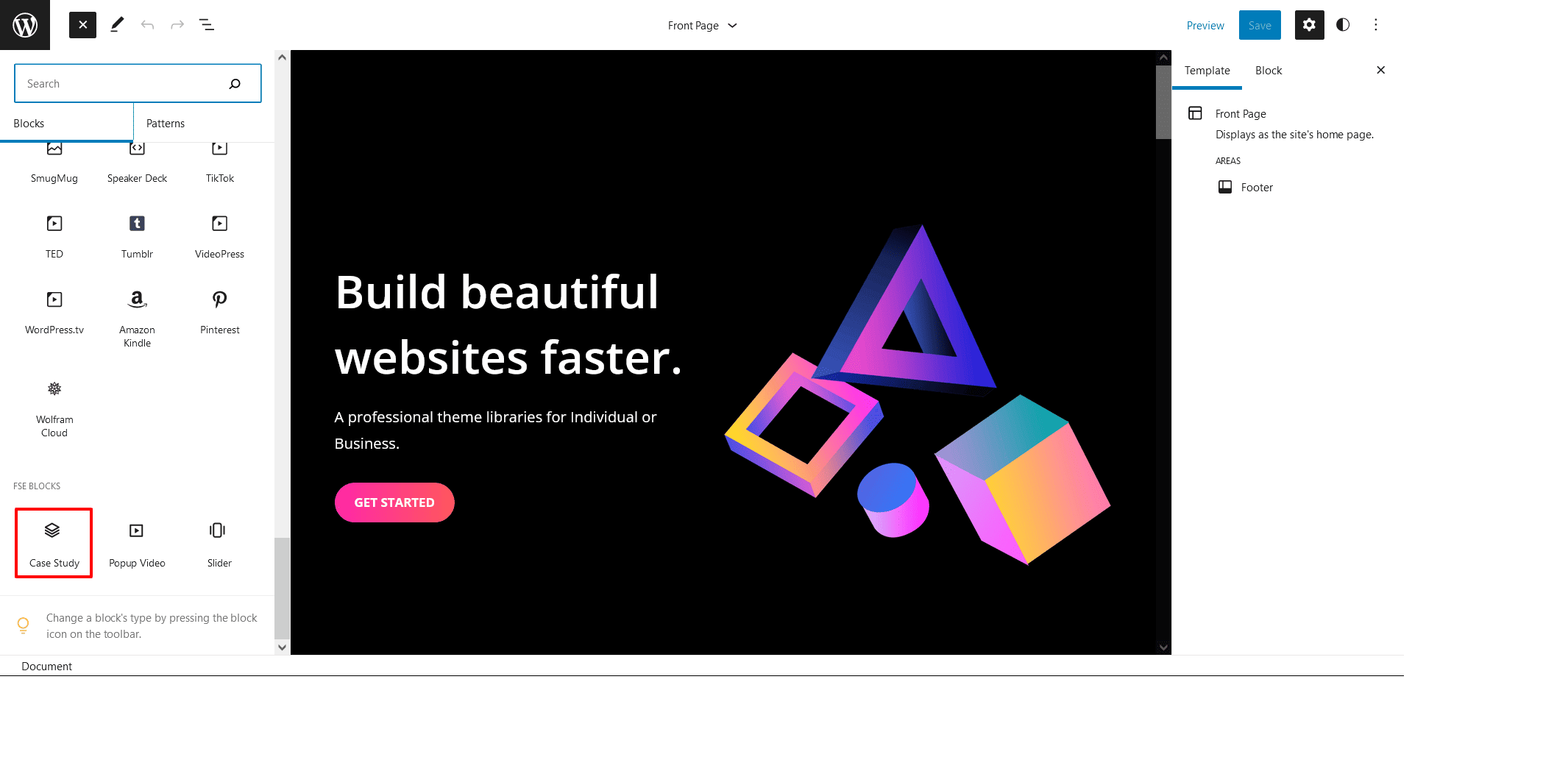
- Scroll down and to find “Case Study”, then add Slider or you can click on “+” sign in the template or page where you want to add Case Study then search for Case Study and add it
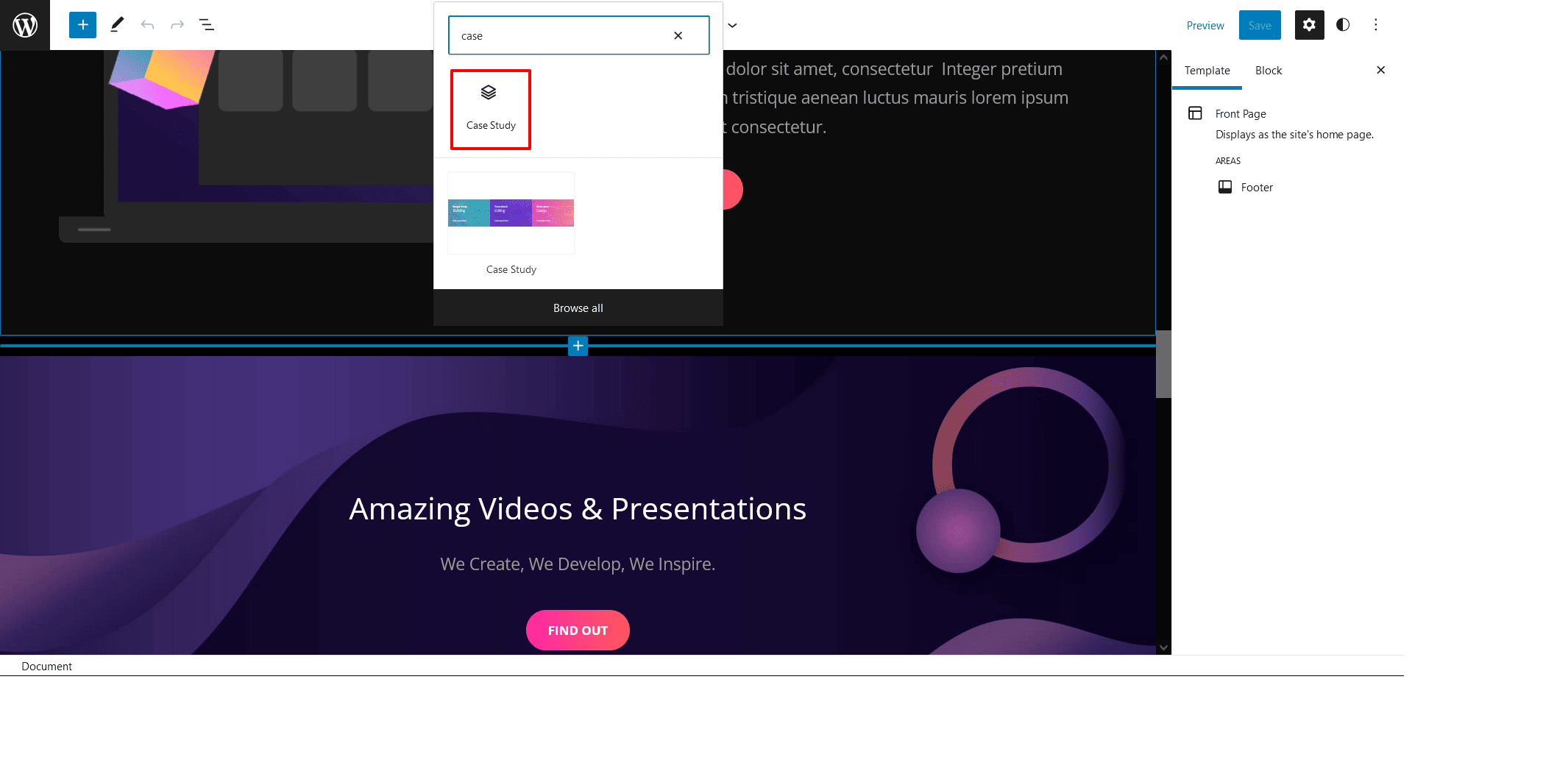
- Now you can easily edit its background, change text, add URL
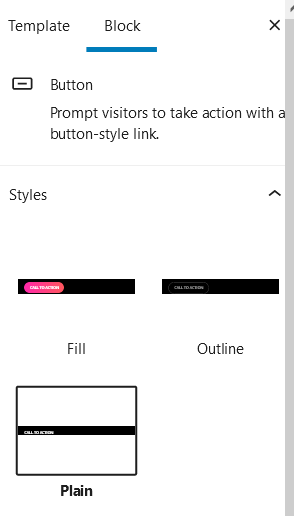
- There are three different styles you can choose for Call to action button: Fill, Outline or Plain
- Finally, Click “SAVE” to save changes