
- Access the Site Editor as mentioned above.
- Access the template part which has a Navigation block. The screenshot below shows the Navigation Block on the Header With Cart Banner template part.
- Click on the Navigation block and open the Settings panel which should show the Navigation block settings. Sometimes, you need to select “Select Navigation” from the toolbar to show the Navigation settings panel.
- From the Settings panel, click on Menu Selector and select Create New Menu.
- This will add an empty menu, now click on the + Add Block button which will allow you to search or type the URL as needed.
- To add submenu items, simply select the block you want to add submenu items to and, in the block toolbar, click on the submenu icon. This will automatically add a submenu item below the block you selected.
- After adding all the necessary links, click on the Save button.
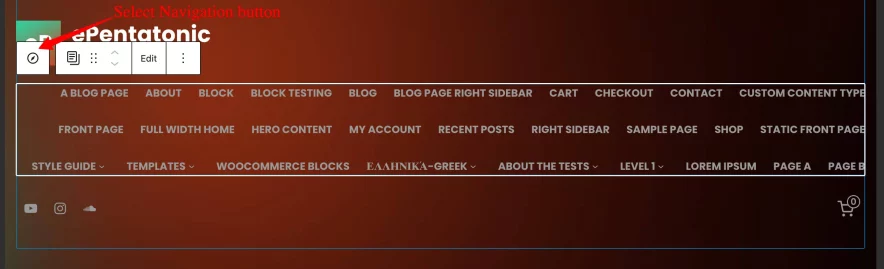
Select Navigation Button
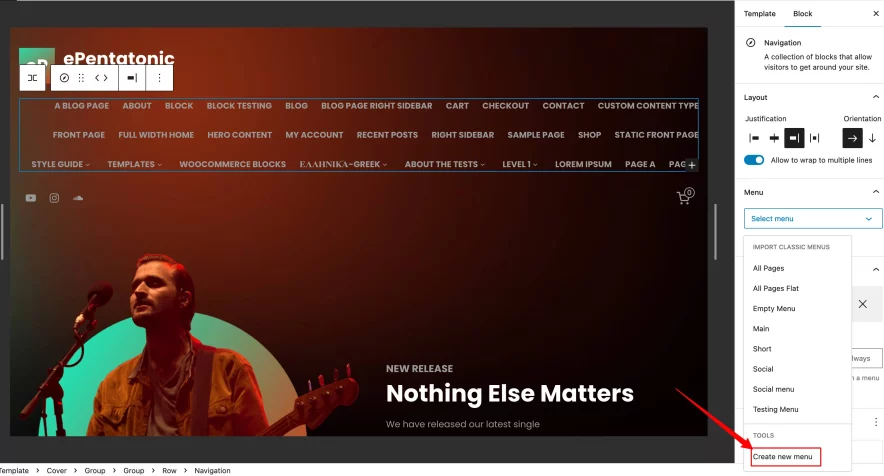
Create New Menu
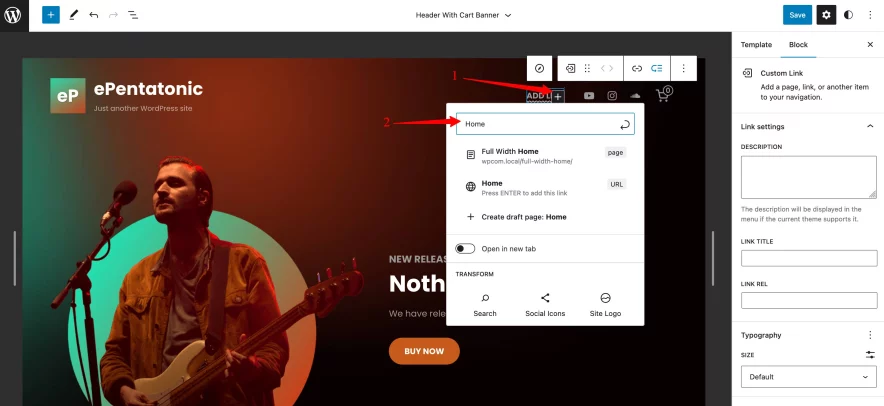
Add Menu Items

Add Submenu Button
More information on Creating a New Menu.