

You can create your own playlist on the Page or on the Post as per your requirement.
A. How to add Playlist on the Page/Post?
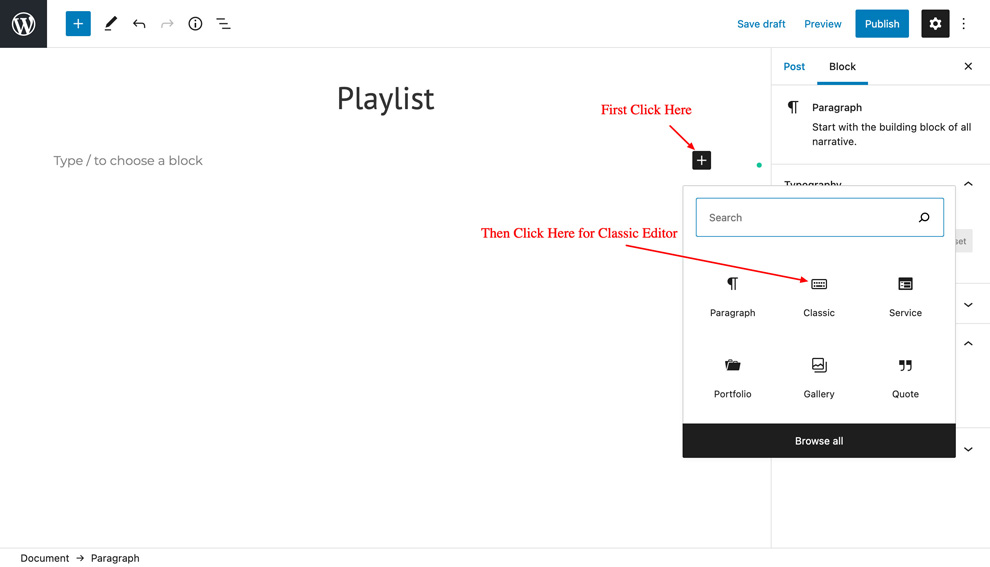
- Open the page/post where you want to create Playlist, click on Plus Icon

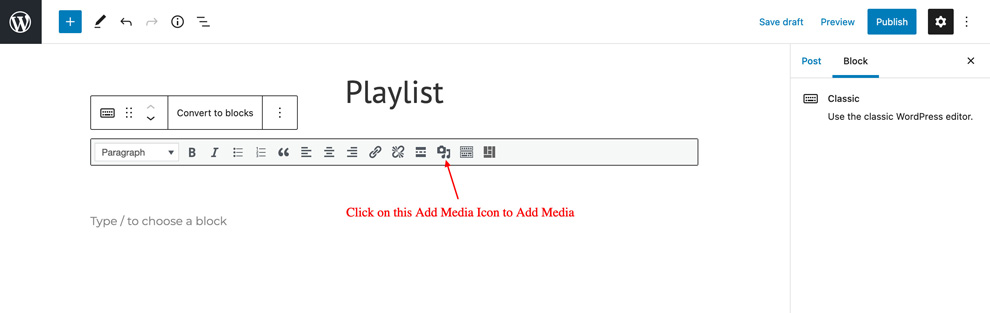
- Click on “Add Media” Icon

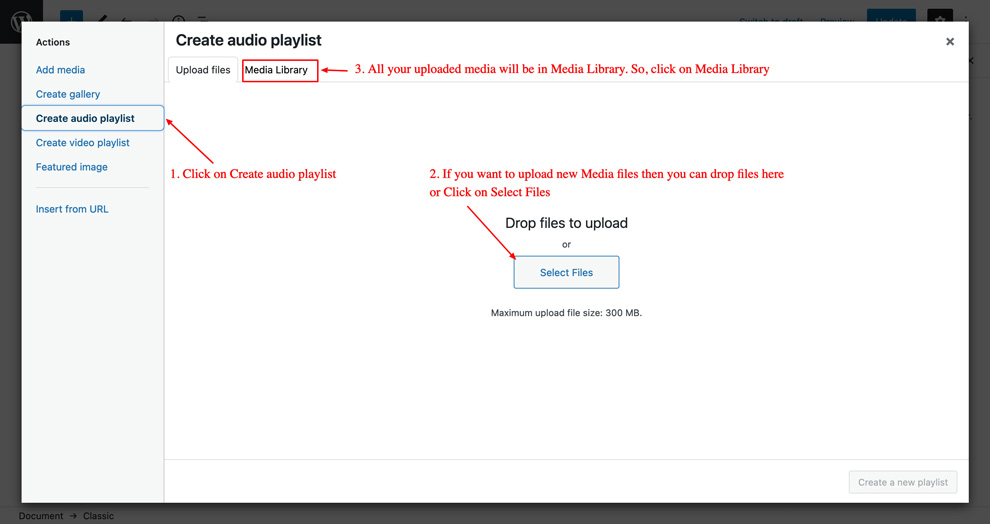
- Click on the “Create audio playlist” button (on your left) and if you need to upload new media files then you can do it here from the “Upload Files” tab or if you want to use existing media files in your site then you can select it from “Media Library” tab
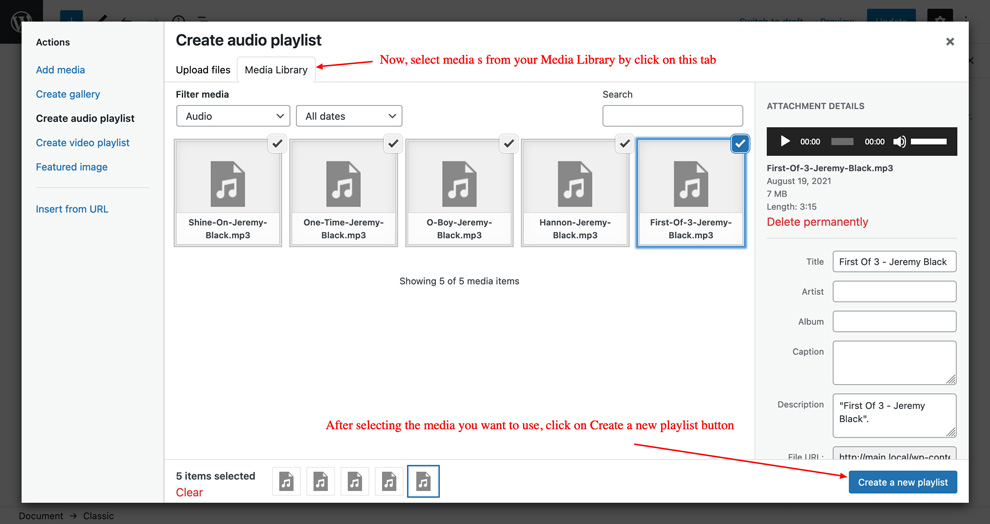
- After selecting media files from your Media Library, you need to click on the “Create a new playlist” button (on bottom left)
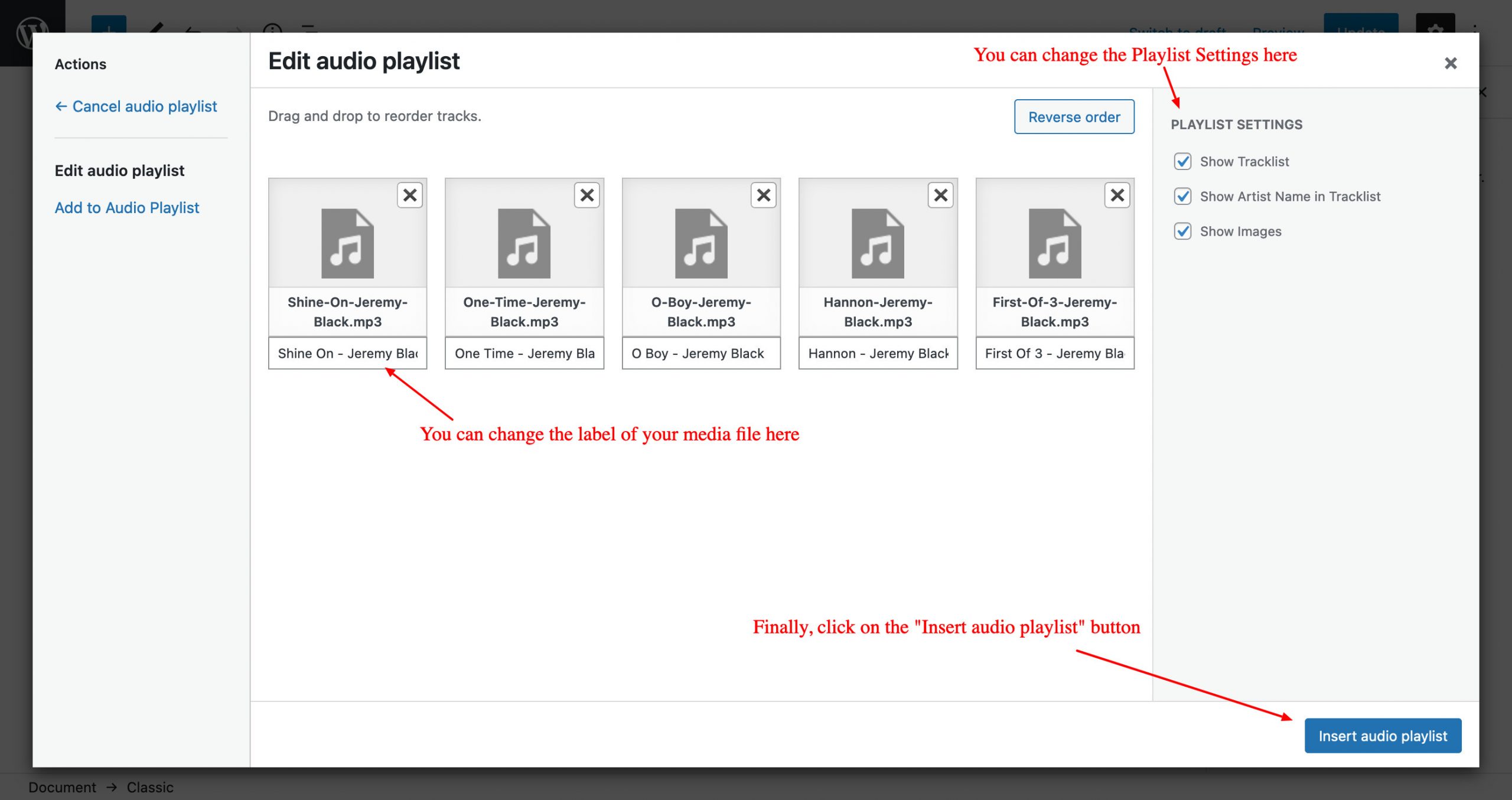
- Now, you will see “Edit audio playlist” screen where you can make final changes to Media name and check Playlist Settings on the right. Finally, click on the “Insert audio playlist” button.


B. How to add Playlist Section on your site
Inside “Add Media” you will find Create Audio Playlist option, from there you can choose you audio to add in playlist